Context Menu
From Azure Boards or Queries, open a work item’s menu → Raaghu to run AI actions without leaving the board: chat, review readiness, improve description or acceptance criteria, generate children and test cases, build backlog from notes, or assess impact.
You need a Spec Kit seat and a connected AI provider. See Installation. If you do not see Settings, ask an admin to connect AI (Settings). Prefer guided workspace cards instead? Use Workflows.
Open the Context Menu
- On a backlog, board, or query result, open the work-item context menu (right-click or …).
- Choose Raaghu.
- Pick an action. Spec Kit opens a side panel for that work item.


Actions
| Action | What it does |
|---|---|
| Open Chat | Opens the panel so you can ask questions. Nothing is written to Azure DevOps until you save a draft or create items. |
| Review Work Item | Read-only readiness report (summary, gaps, risks, verdict, next steps). Optionally Apply fixes as draft. |
| INVEST Check | Scores the item with the INVEST checklist (Independent, Negotiable, Valuable, Estimable, Small, Testable), adapted for Epic, Feature, User Story, and other types. Optionally apply priority fixes as a draft, or tag the score on the work item. |
| Improve Description | Rewrites wording and structure into a reviewable draft. Preserves meaning and does not invent new scope. You can also improve the title. |
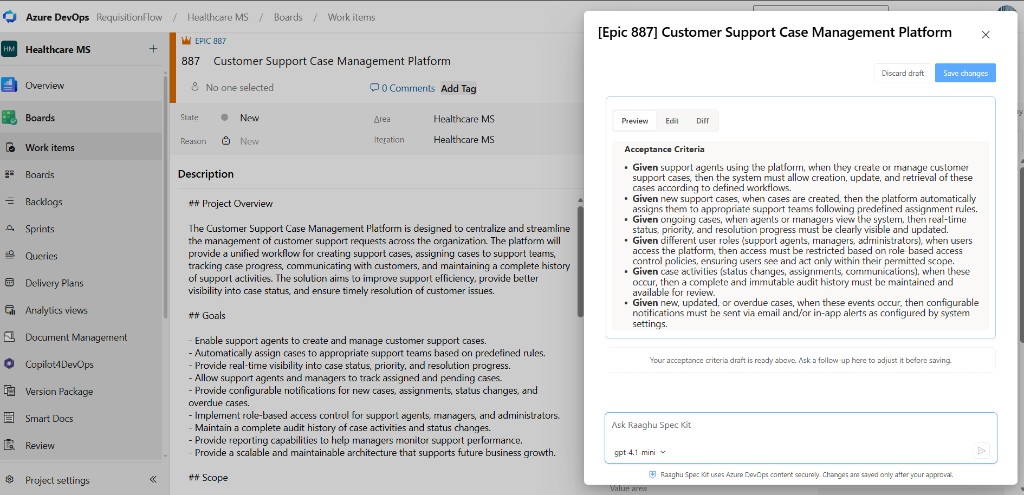
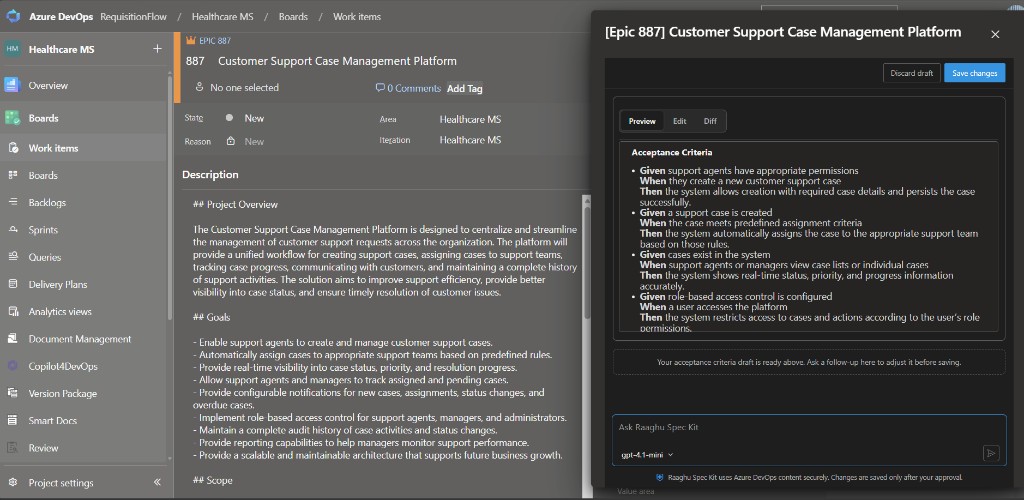
| Generate Acceptance Criteria | Drafts testable acceptance criteria while keeping the existing description. Review, then Save changes. |
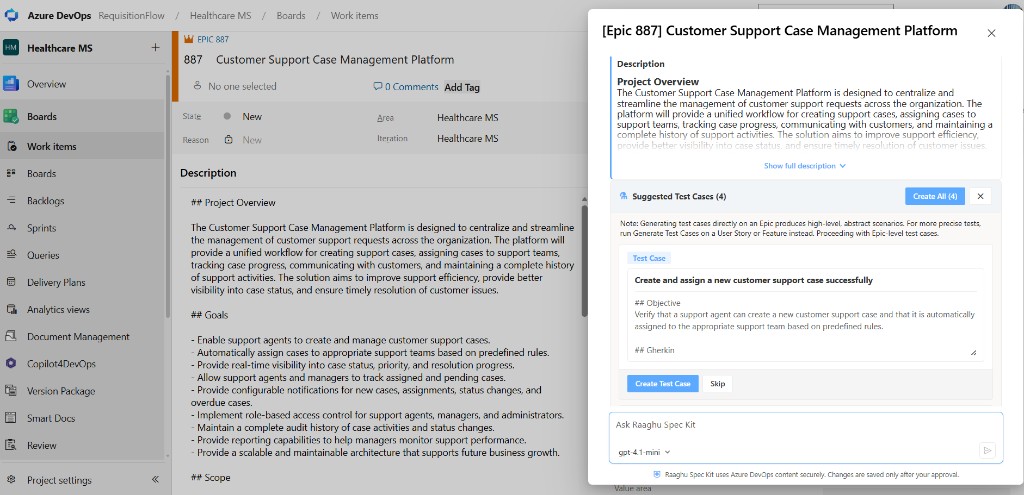
| Generate Child Items | Suggests next-level children for your process template. Edit, create, or skip each card. |
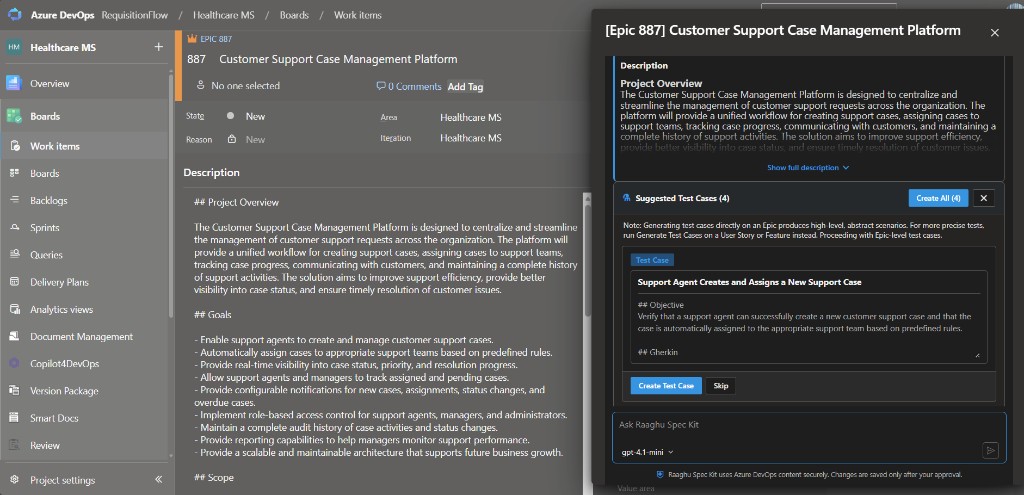
| Generate Test Cases | Suggests Gherkin (Given/When/Then) or step-based test cases. Review and create linked Test Cases in Azure DevOps. |
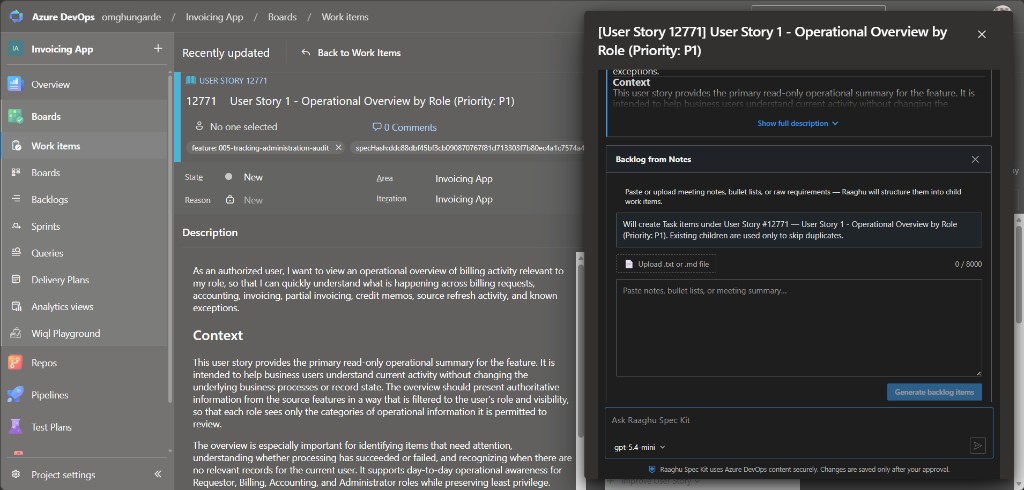
| Backlog from Notes | Paste or upload notes (.txt / .md, max 8000 characters). Spec Kit previews the child type, then Generate backlog items for you to review and create. |
| Assess Impact | Describe the change to assess (optional for Change Request types). Returns an impact report; linked parent, children, and related items are context only — they are not automatically marked impacted. |
Batch: With multiple work items selected, Review Work Item, INVEST Check, and Generate Acceptance Criteria can run across the selection. Other actions use the primary selected item.
Work-item panel
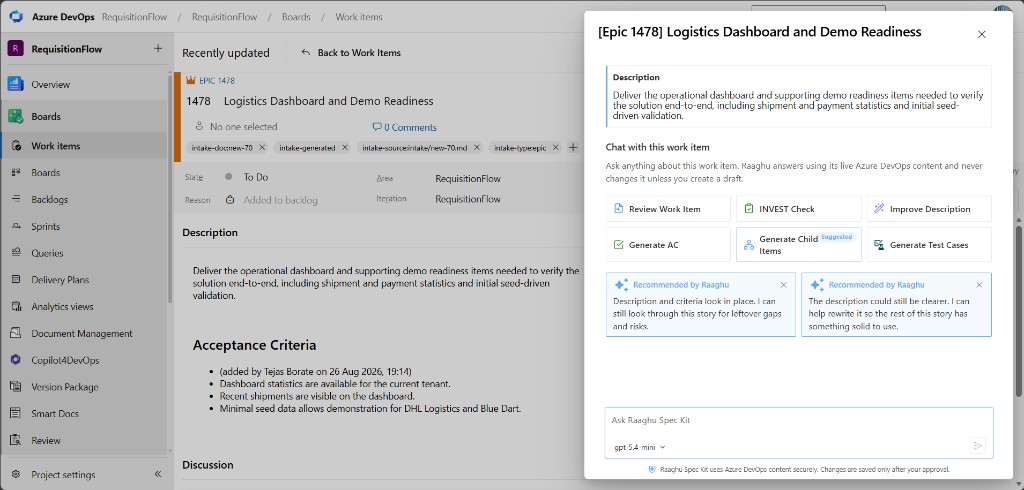
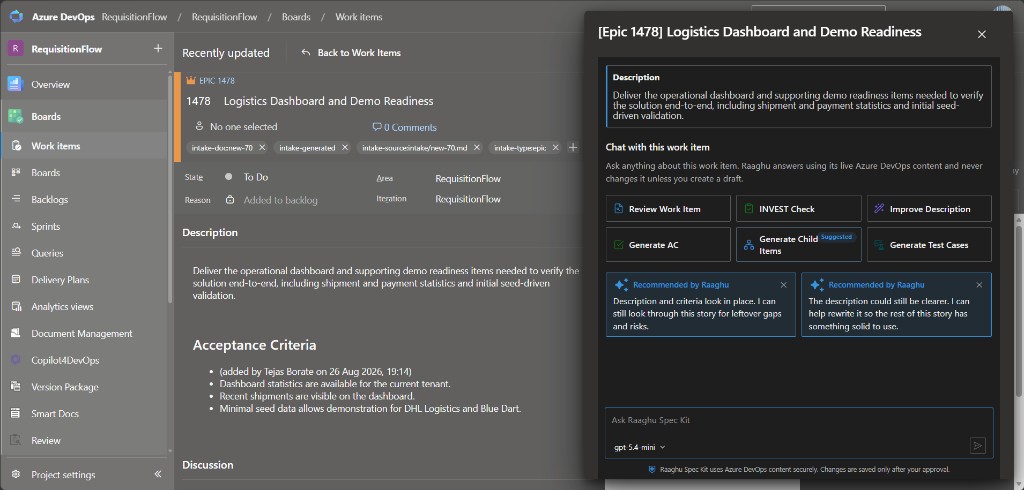
The panel shows the current work item (type and state), quick-action chips, and the conversation. Refine actions open a draft with Preview, Edit, and Diff. Nothing is saved to Azure DevOps until you confirm.
Recommended by Raaghu appears only when there are concrete gaps — for example a thin description or missing/thin acceptance criteria. When the work item already looks ready, no recommendation cards are shown. After you run an action, that action stays excluded from recommendations until you start a New conversation. A quick-action chip can still show a Suggested badge for another follow-up when gaps remain.
Backlog from Notes
- From the Context Menu (or a quick action in the panel), choose Backlog from Notes.
- Paste notes or upload a
.txt/.mdfile (max 8000 characters). The panel shows which child type will be created under the parent. - Click Generate backlog items, then review each suggested card — edit, Create, or Skip.

Assess Impact
- From the Context Menu (or a quick action in the panel), choose Assess Impact.
- Enter the change to assess (required for most work-item types; optional for Change Request). Linked items are used as context only.
- Click Start Assess Impact and review the report (directly impacted, potentially impacted, cascade risks, and recommended actions).


Generate Acceptance Criteria
- From the Context Menu (or a quick action in the panel), choose Generate Acceptance Criteria.
- Review the proposed acceptance criteria draft (description stays intact).
- Edit if needed, then Save changes to write them back to the work item.
Generate Test Cases or Child Items
- Run Generate Test Cases or Generate Child Items.
- Review each suggested card — edit title/body, Create, Skip, or undo a skip.
- Created items open in Azure DevOps; the panel closes when the list is finished unless you keep interacting with it.