Visuals
The Visuals tab shows your work as a connected tree of Azure Boards items (Epic → Feature → User Story → Task). Use it to create work items from your Spec Kit wiki pages, link existing Boards items into that tree, improve items with AI, and explore links.
There are two different Sync actions — do not mix them up:
| Sync | Where | What it does |
|---|---|---|
| Wand Sync | Magic wand on a card | Creates or updates Boards items from wiki pages (one level at a time) |
| Chart Sync | Blue Sync button on the canvas toolbar | Finds existing Boards items and links matching ones into the Spec Kit tree |
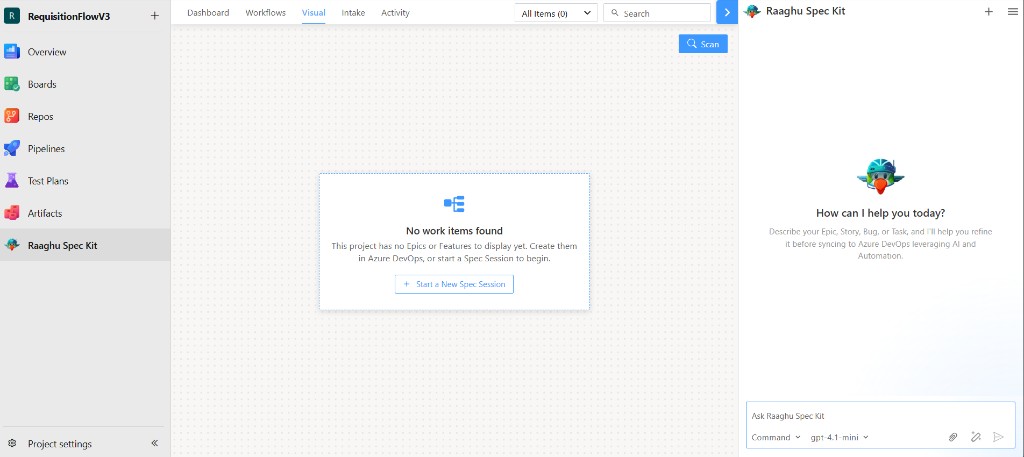
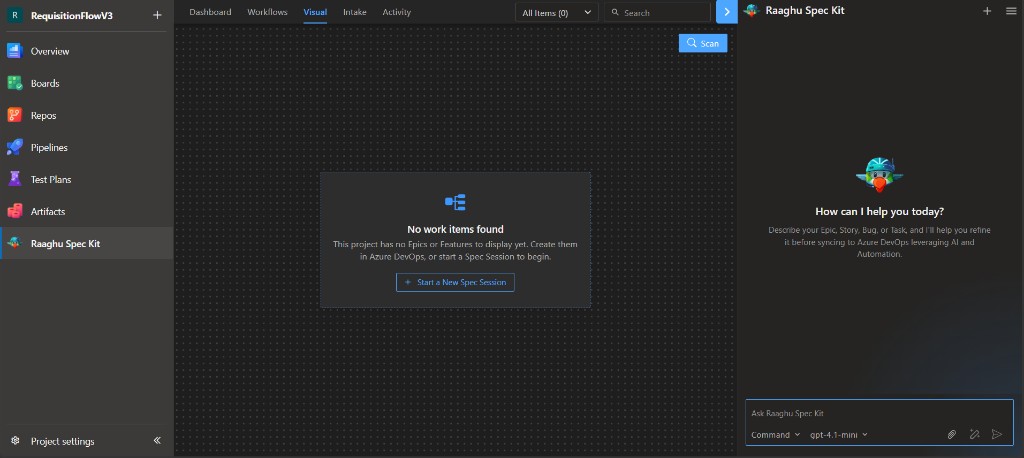
If Spec Kit is not initialized yet, the right panel still shows Initialize Spec Kit. After Spec Kit is initialized but before you have Epics or Features to show, Visuals may show "No work items found" with + Start a New Spec Session:
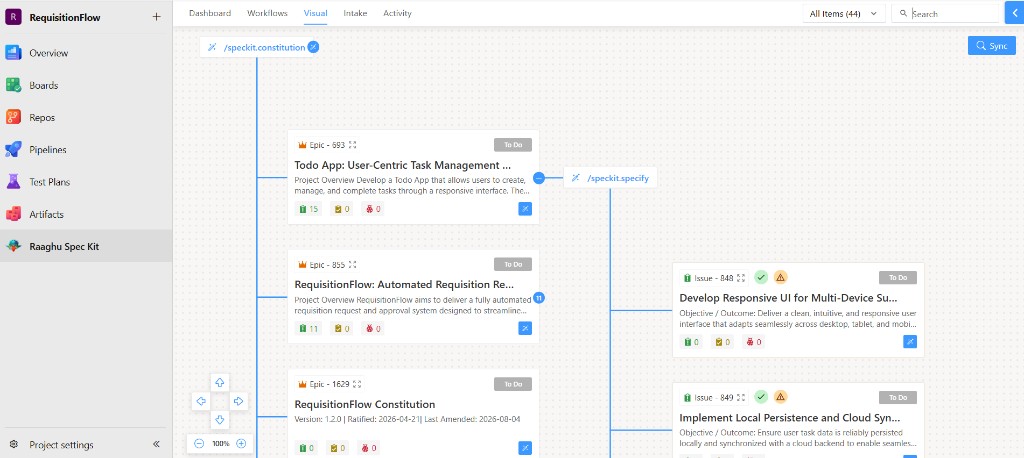
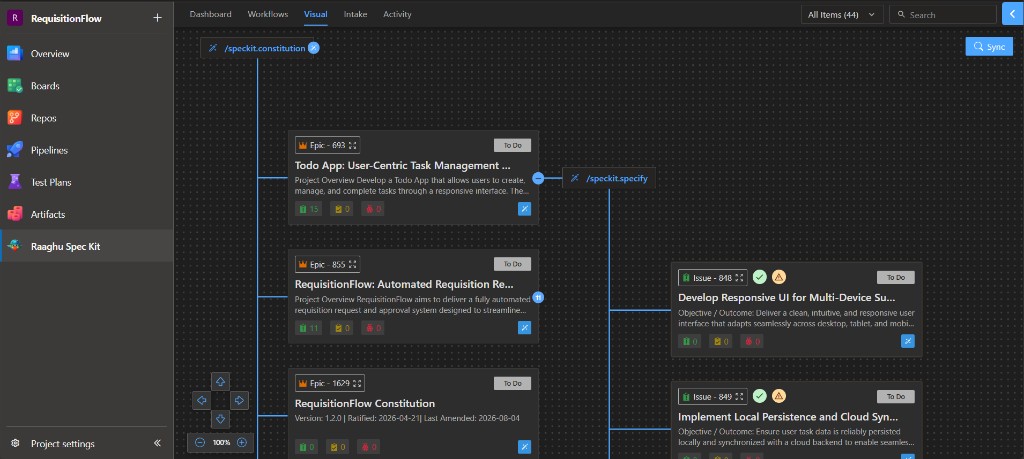
After you generate specs and sync work items, the hierarchy canvas looks like this:
The hierarchy
flowchart LR
  C["Constitution"] --> E["Epic"]
  E --> F["Feature"]
  F --> U["User Story"]
  U --> T["Task"]
The Constitution node comes from your Spec Kit constitution — it is not an Azure Boards work item. Epics, Features, User Stories, and Tasks are Boards items. Type names follow your process template (for example, "Issue" instead of "Feature").
Each card shows type, ID, status, title, child counts, and a magic-wand button. Click the title to open the work item in Azure DevOps.
Items stay on the main Spec Kit tree when Spec Kit owns them, they carry the raaghuspeckit-autolinked tag, or they match a real wiki feature page (spec / tasks). Boards items that are not yet in the tree show up separately after you run chart Sync (items waiting to be linked).
Azure DevOps Wiki pages do not use a .md file extension. Docs may say spec or tasks for the wiki page names. Older wording like spec.md means the same wiki page.
Wand Sync and Refine (magic wand)
Open a card's magic-wand menu to create the next level of work items from wiki pages:
| Sync from | Creates | Requires in Wiki |
|---|---|---|
| Constitution | Epics | Kept constitution |
| Epic | Features | At least one feature spec |
| Feature | User Stories | Feature spec |
| User Story | Tasks | Feature tasks |
Work level by level. Wand Sync compares Spec Kit wiki pages to existing items and creates or updates them — it does not create duplicates (including Features already covered by auto-linked existing Boards items). Syncing one level does not automatically create all deeper children.
Refine opens the item in chat so you can improve it with AI.
If Sync is disabled, generate the required wiki pages first with Spec Kit Commands or Workflows.
Sync-ready
When an Epic has matching wiki Features that are not yet created under it on Boards, the card can show a sync-ready wand (separate from the amber spec gaps warning). Hover the icon for the Feature names (for example Feature A, Feature B — click Sync to create these Features). Use the card’s magic wand → Sync to create them. The badge clears when Sync would create nothing.
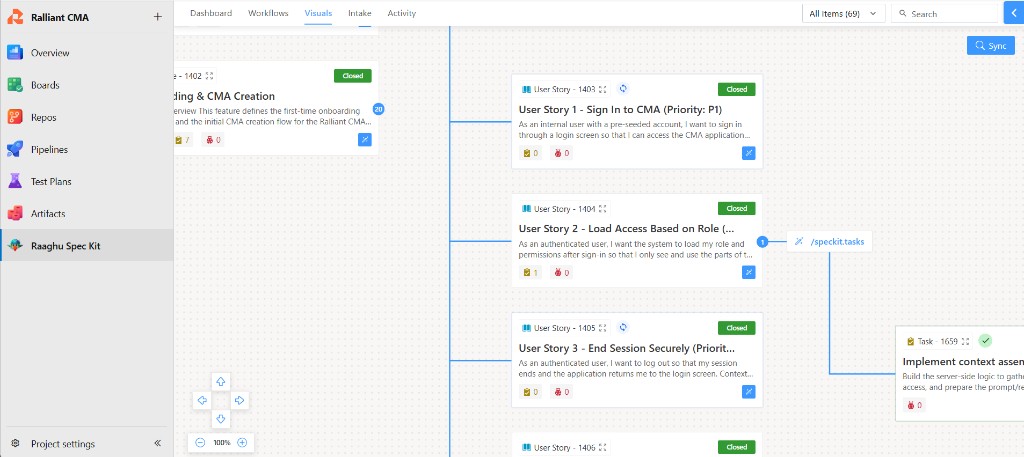
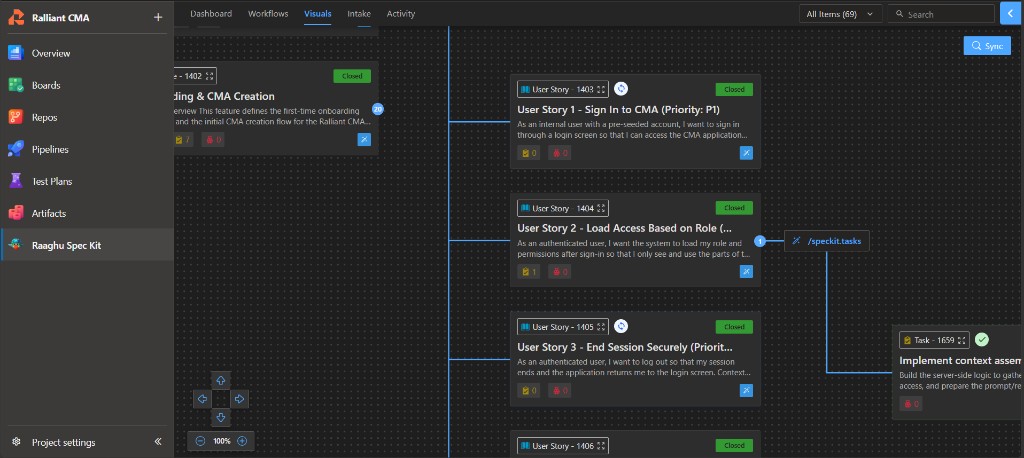
Chart Sync (find and auto-link)
The blue Sync button on the Visuals canvas toolbar is separate from wand Sync:
| Control | Label | What it does |
|---|---|---|
| Chart Sync | Sync / Syncing… | Finds work items outside the Spec Kit tree, then auto-links matching items into the hierarchy |
Chart Sync first finds items not yet in the tree (a toast may still say Scan complete), then runs auto-link. Auto-link needs Spec Kit initialized (constitution present) and an AI provider. If AI is not configured, you may see Auto-link skipped — Configure an AI provider to auto-link work items. If Spec Kit is not initialized, auto-link waits until you initialize.
When linking succeeds, you may see Auto-link complete (for example Linked N work item(s) into the Spec Kit hierarchy.) Linked cards can show a green check (connected to the project hierarchy). Spec Kit stamps the raaghuspeckit-autolinked tag on matched items.
Spec gaps
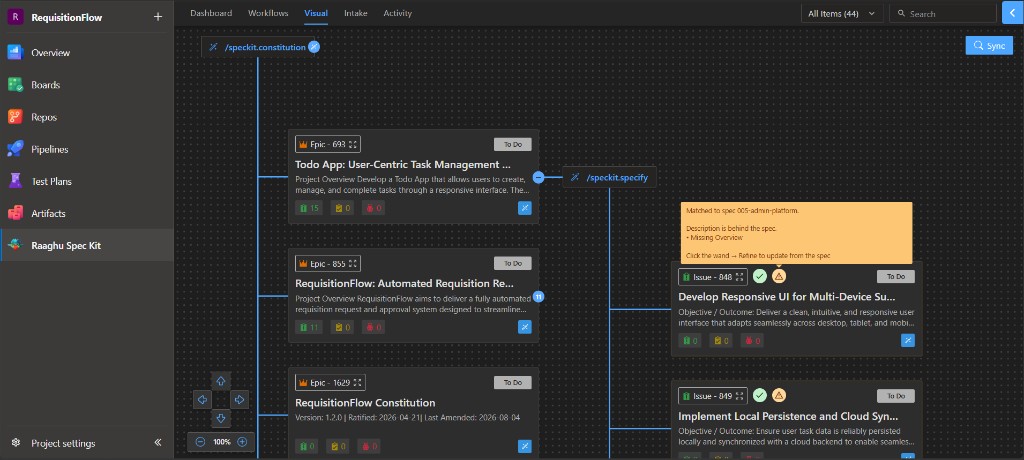
When a linked existing Boards item’s description is behind the matching wiki content, the card shows an amber warning (spec gaps detected). Hover the warning to see the match (for example Matched to spec …), that Description is behind the spec., missing sections (for example Missing Overview), and Click the wand → Refine to update from the spec.
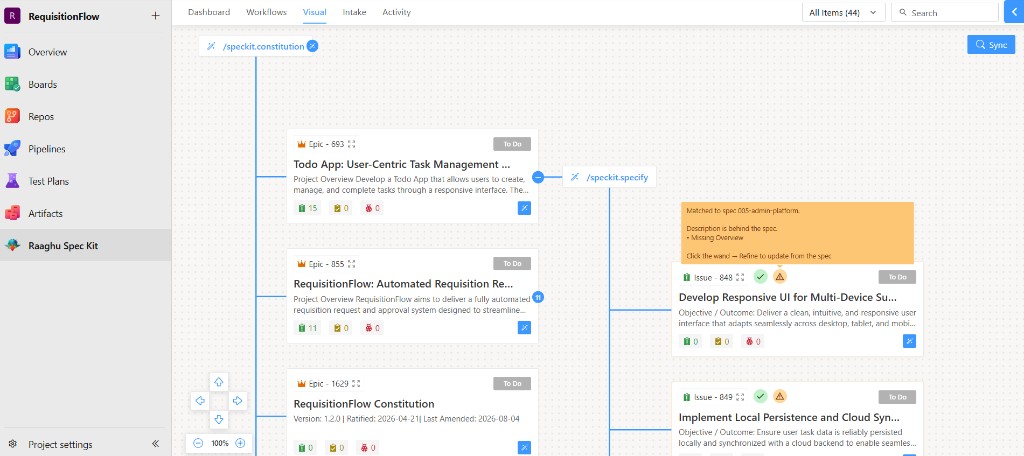
Use the magic wand → Refine, review the draft (Preview / Edit / Diff), then continue to update the work item from the constitution / feature spec / tasks wiki pages.
Related work in the wiki
Chart Sync auto-link and gap Refine can add a Related work section on the matched wiki page (constitution or feature spec) with entries for the linked Boards items, and can add a wiki hyperlink on the work item. Entries for Boards items that no longer exist are removed when Sync or Refine updates the page. Open the wiki page under Raaghu Spec Kit/ (or Speckit/ on older projects) to review it.
Navigate the canvas
- Expand or collapse branches with the count badges.
- Filter by type and search by title in the toolbar.
- Pan and zoom the canvas.