Chat Panel
The chat panel on the right is where you talk to AI, run Spec Kit commands, and follow guided Workflows.
An AI provider must be connected first. If none is configured, you see "LLM is not configured" (LLM means the AI model or connection). Organization admins and Project Administrators connect AI in Settings. If you do not see Settings in the hamburger menu, ask an admin to connect AI for this project.
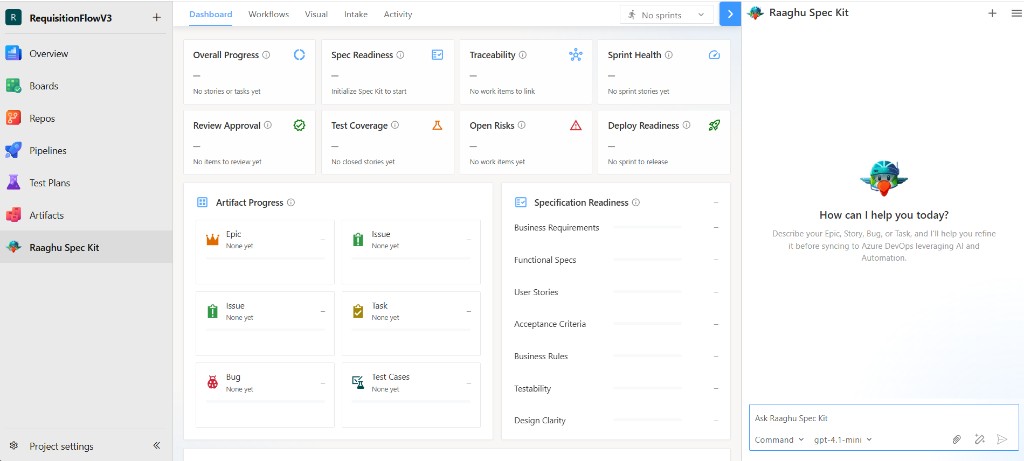
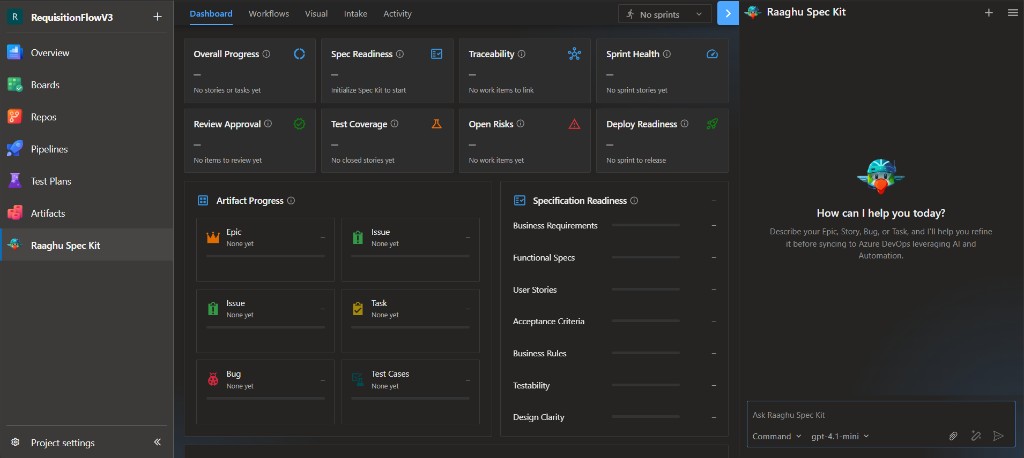
Send a message
- Type in the Ask Raaghu Spec Kit box.
- Optionally pick a Command and attach files.
- Click Send.
Use the Command dropdown for Spec Kit commands. If Settings → Commands Mapping is set to Default, you see friendly names such as "Create Specification" — that is the same as /speckit.specify. Use the ⓘ buttons on the Command title and on each command for short in-product help (description, what to enter, and an example). See Spec Kit Commands.
The footer shows the active AI model. Enhance prompt can rewrite your text before sending.
While a reply is generating, use Stop generating to cancel. Interrupted replies can show "Response stopped. Retry to run this prompt again" — click Retry to send the last prompt again.
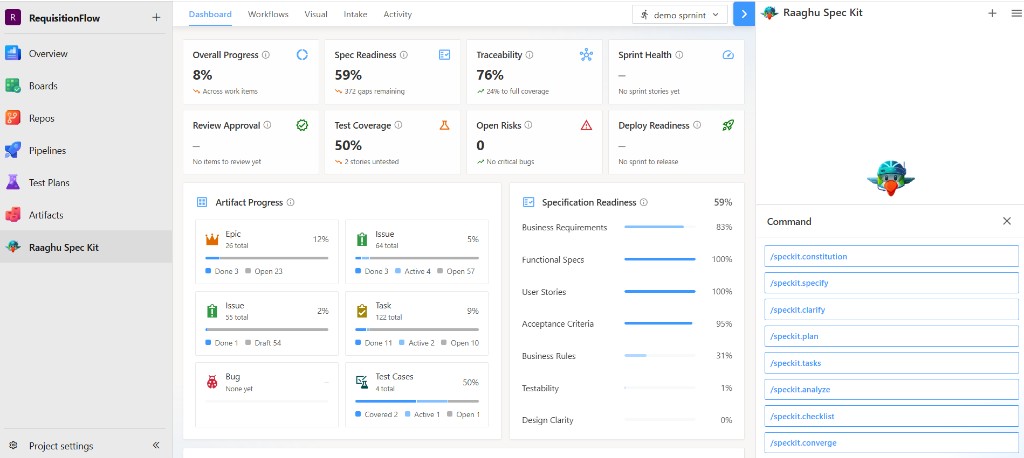
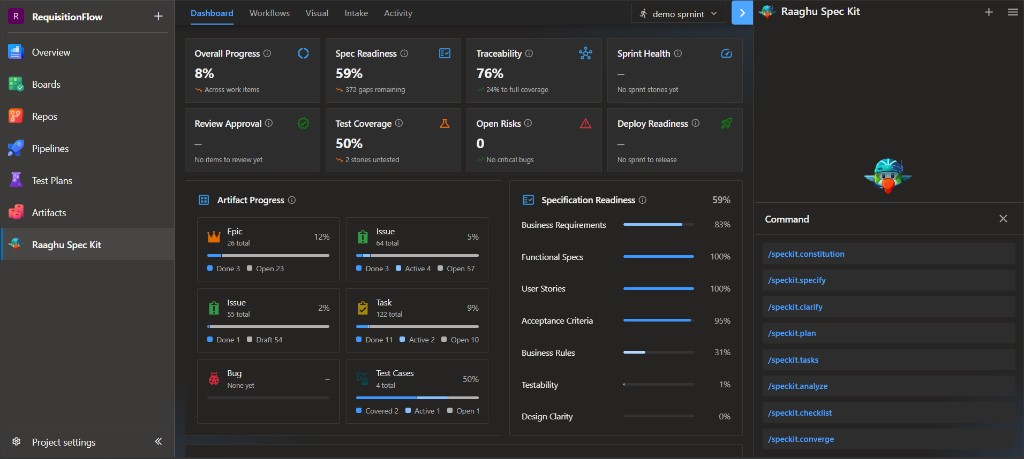
Attach files
Click the paperclip icon to open Select Files. Choose from Repos, Wiki, Boards, Backlogs, and more, or upload from your computer (up to 4 files). Then click Attach.
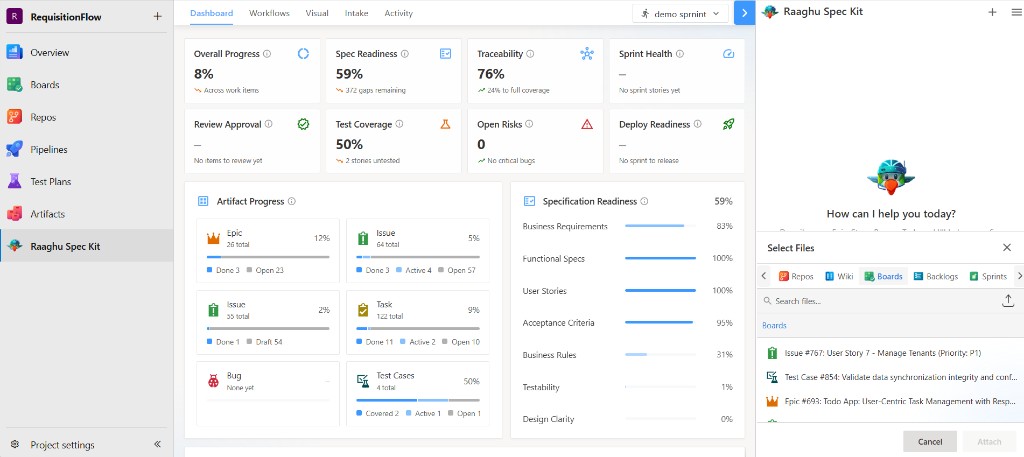
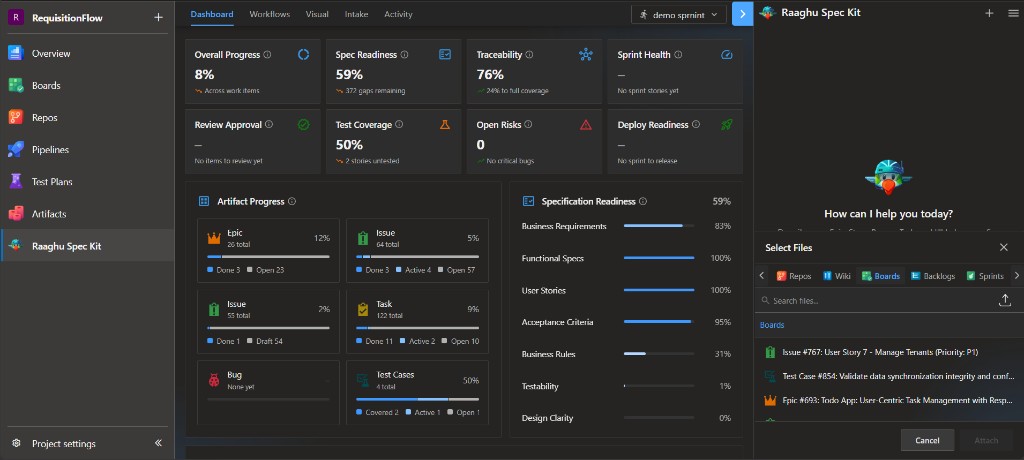
New chat and history
Use + to start a new chat. At 20 messages you get a reminder to start a new chat soon. At 25 messages you must start a new chat to continue.
The hamburger menu includes:
| Item | Purpose |
|---|---|
| History | Past chat sessions for this project |
| My AI usage | Personal hosted-AI spend |
| Contact Us | Send a message to the Raaghu team |
| Report Issue | Report a problem |
| About Us | Product name, version, and credits |
| Settings | AI and command display settings (visible to organization admins and Project Administrators only) |
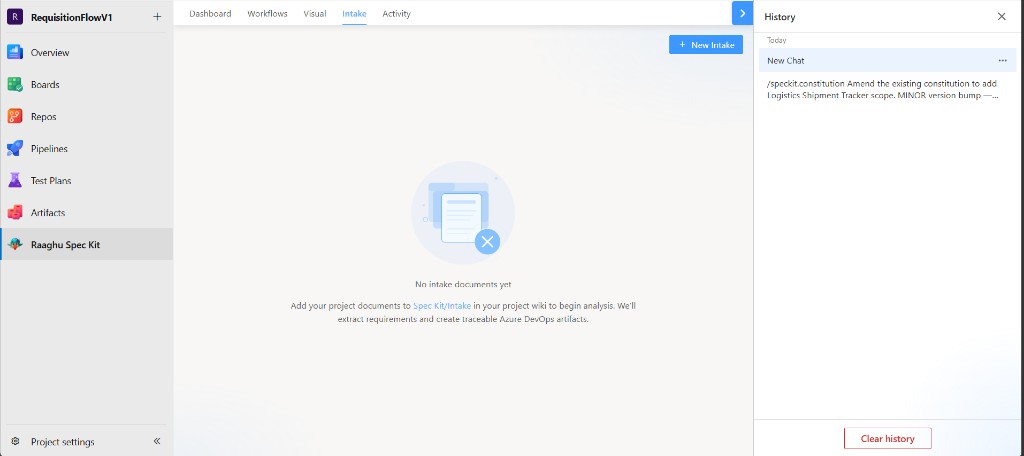
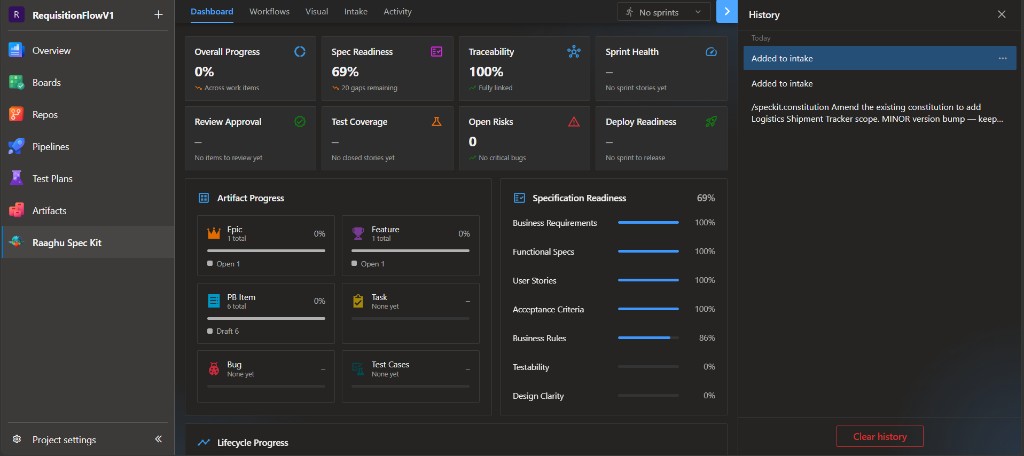
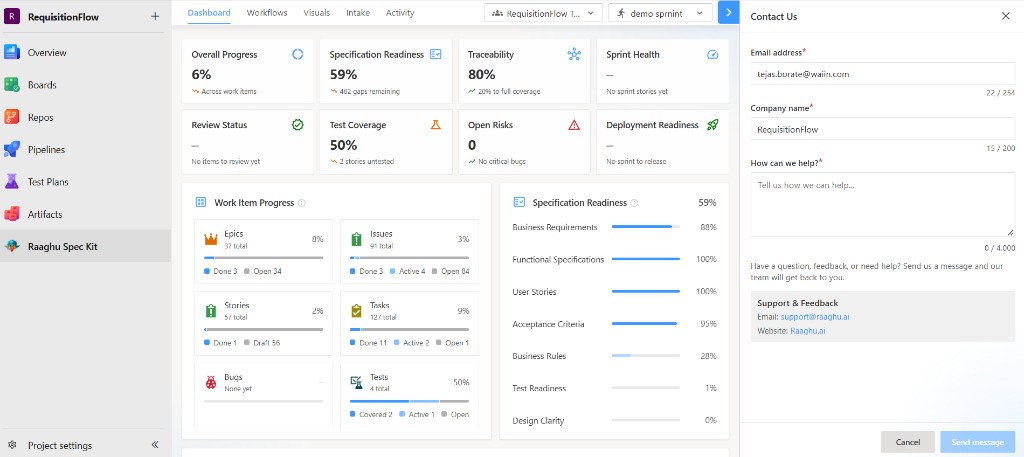
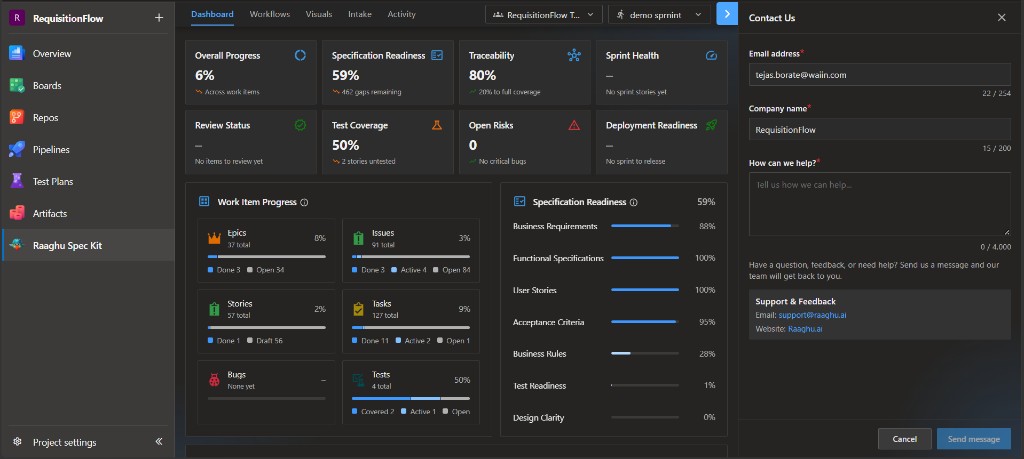
Contact Us opens a form for Email address, Company name, and How can we help? Use Send message to submit. The panel also lists Support & Feedback with support@raaghu.ai and Raaghu.ai.
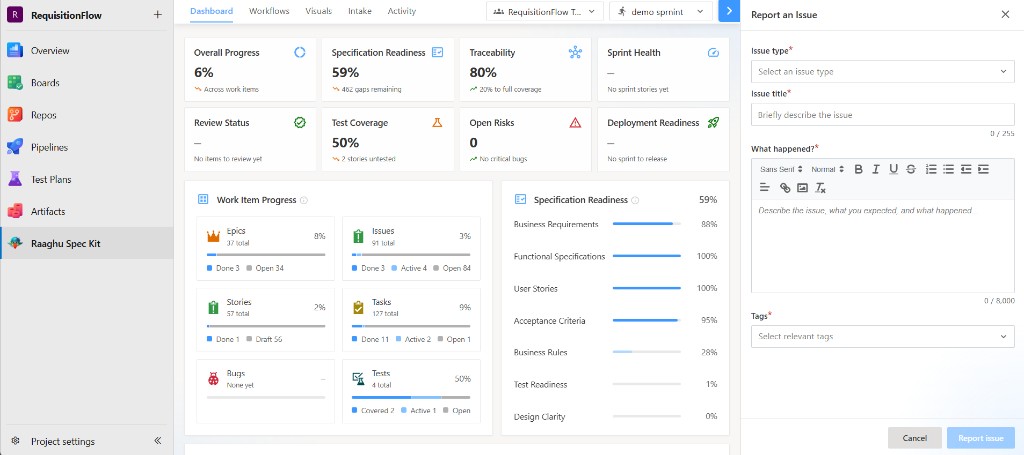
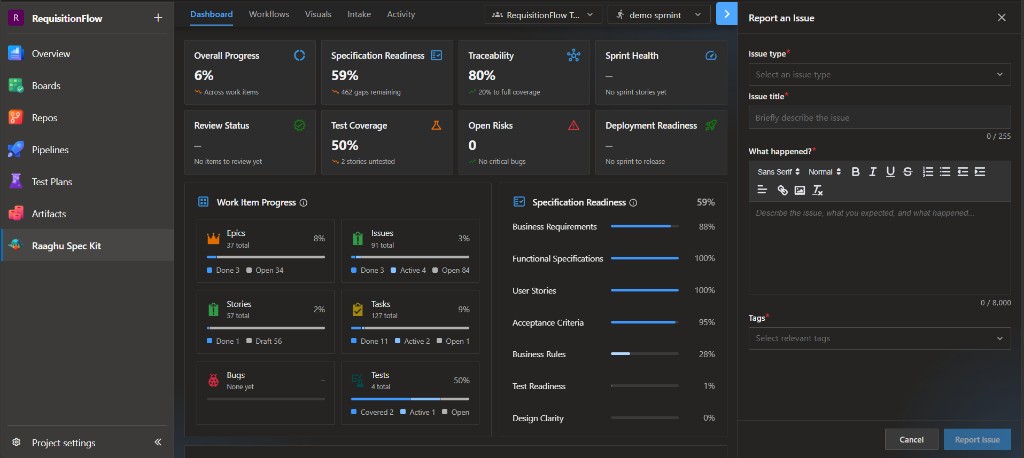
Report an Issue asks for Issue type, Issue title, What happened?, and Tags. Use Report issue to submit.
Context Menu
From Azure Boards or Queries, open the work-item Context Menu → Raaghu for review, refine, acceptance criteria, child items, and test cases. See Context Menu.