Chat Panel
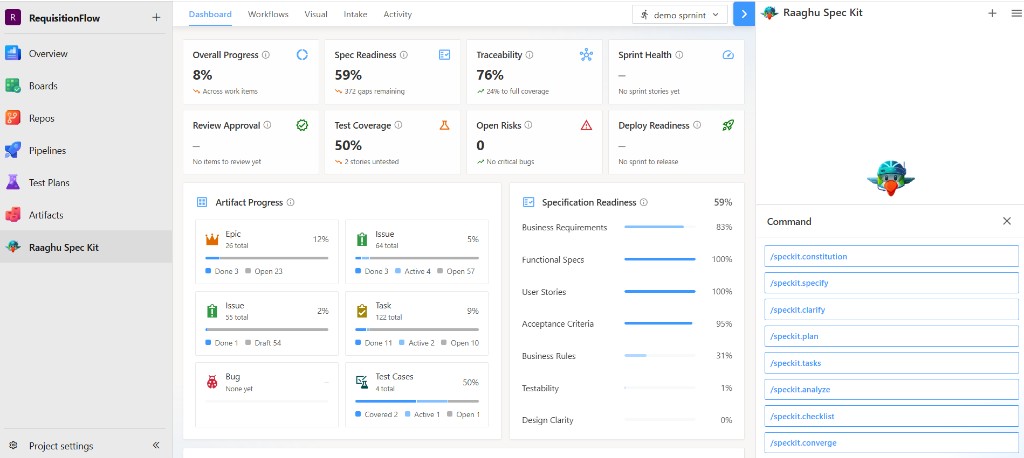
The chat panel on the right is where you talk to AI, run Spec Kit commands, and follow guided Workflows.
An AI provider must be connected first. If none is configured, chat may say "AI is not configured yet. Please contact your organisation admin to proceed." (or ask you to set up AI in Settings). Organization admins and Project Administrators connect AI in Settings. If you do not see Settings in the menu, ask an admin to connect AI for this project.
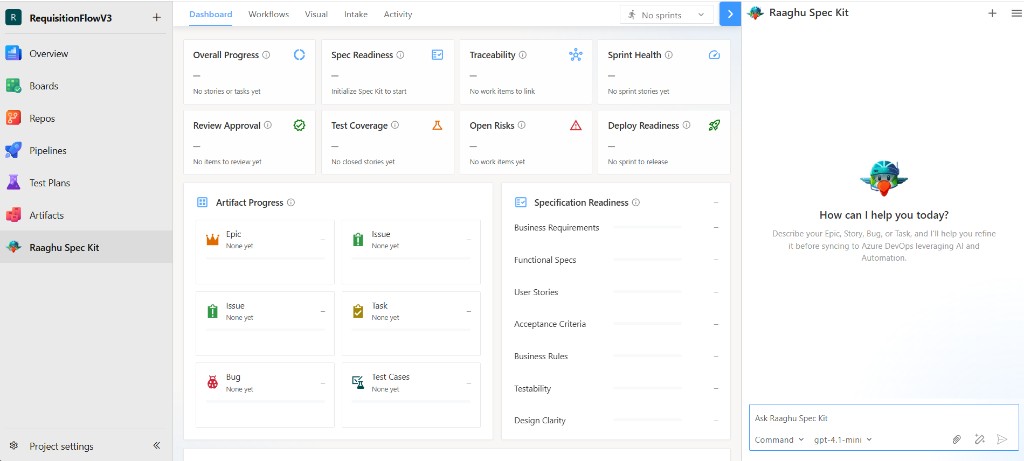
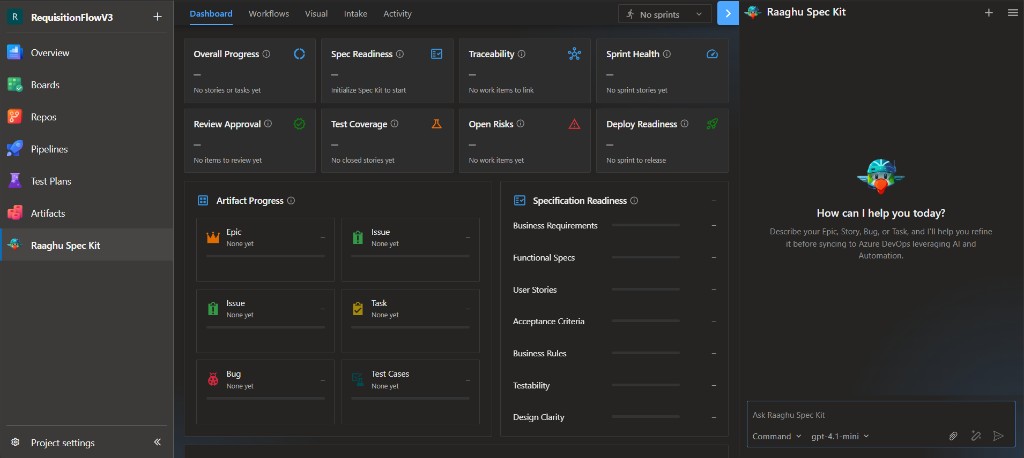
Send a message
- Type in the Ask Raaghu Spec Kit box.
- Optionally pick a Command and attach files.
- Click Send.
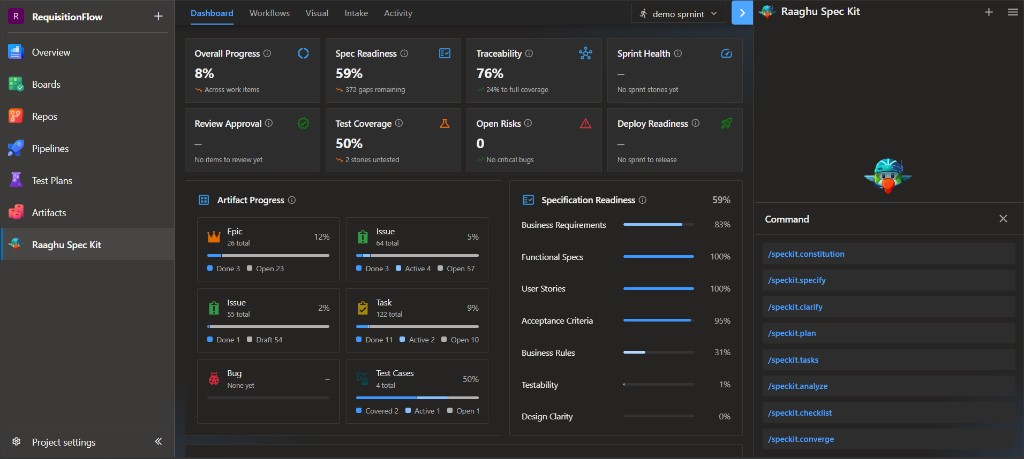
Use the Command dropdown for Spec Kit commands. If Settings → Commands Mapping is set to Default, you see friendly names such as "Create Specification" — that is the same as /speckit.specify. Use the ⓘ buttons on the Command title and on each command for short in-product help (description, what to enter, and an example). See Spec Kit Commands.
The footer shows the active AI model. Enhance prompt can rewrite your text before sending.
While a reply is generating, use Stop generating to cancel. Interrupted replies can show "Response stopped. Retry to run this prompt again" — click Retry to send the last prompt again.
Work item previews in chat
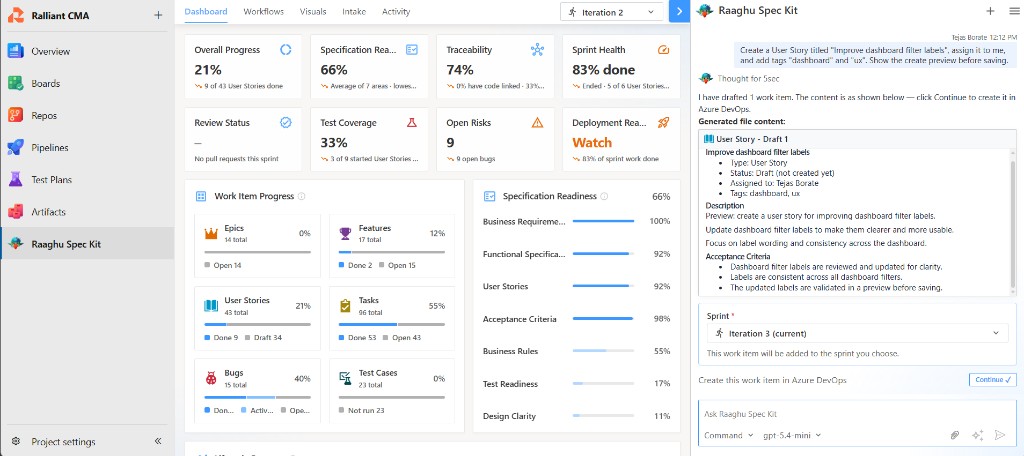
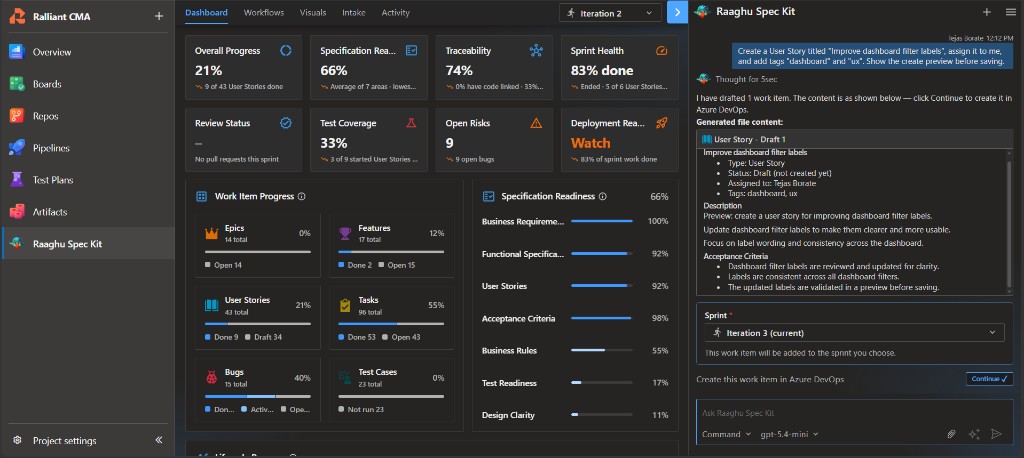
When you ask chat to create, update, change state, or link Azure Boards work items, Spec Kit shows a preview card first. Review the draft, then click Continue — nothing is written to Boards until you confirm.
If the page reloads while a create is in progress, the card explains that some rows may already be saved and does not offer Continue again (to avoid duplicates). Check Azure Boards before asking again.
Team, sprint, assignee, and tags when creating
Before you create new work items, the preview can show Team and Sprint so you can choose where the items go. Then click Continue.
- A short line under the pickers explains where the items will be added.
- If a team has no sprints yet, items can still be created for that team without a sprint.
- The same Team / Sprint choices appear when you create items from Intake.
- If you create a child under a parent that already has a sprint, Spec Kit uses that sprint (or pre-selects it so you can change it).
When you ask for them, the preview can also show Assigned to and Tags (for example create a story, assign to me, tag as urgent). If a name is not found in Azure DevOps, Spec Kit creates the item unassigned and tells you in a short note.
Reports in chat
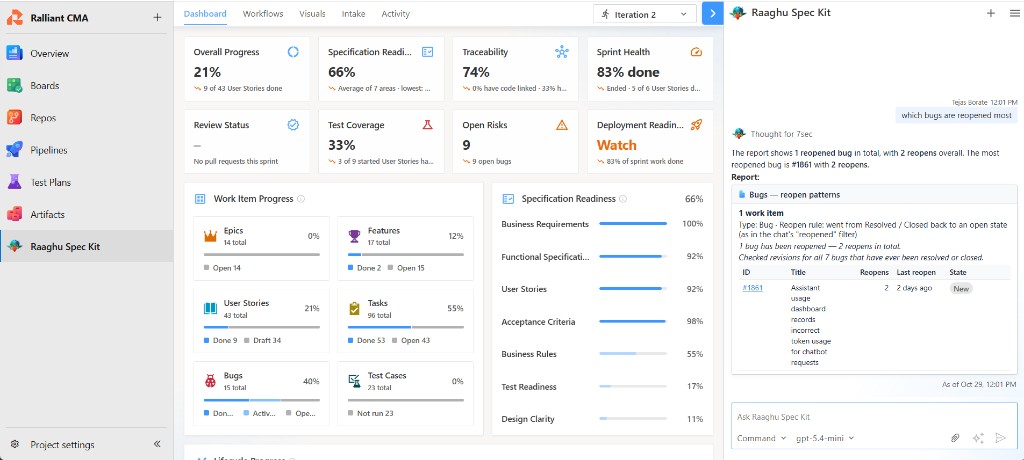
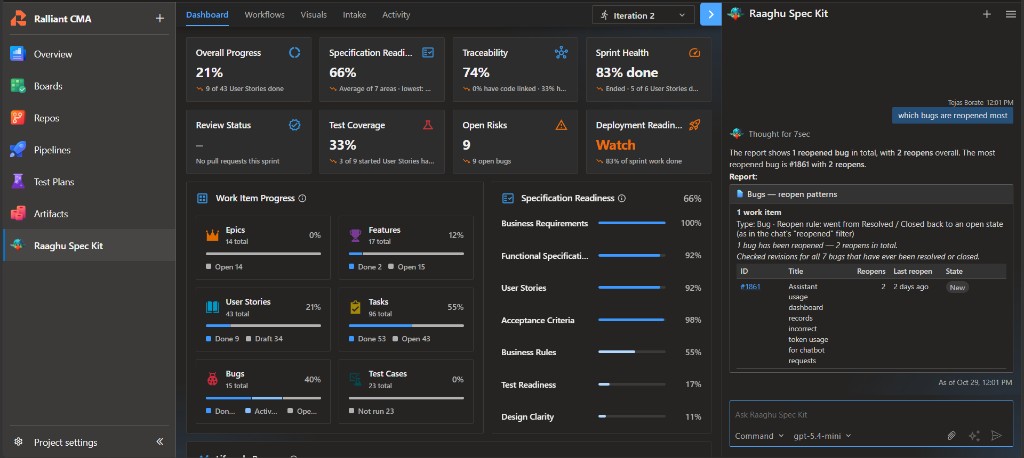
Ask about your backlog in plain language and Spec Kit can show a Report card under the answer — with the total count, a table, links to each work item, and Open / View all in Azure DevOps. The card also shows when the data was loaded (As of …).
Examples you can try:
- Give me open bugs
- open bugs by severity
- stories without test cases
- which bugs are reopened most
- bugs by reopen count
If a report finds no matching items, Spec Kit answers in the chat message and does not show an empty report card.
Chat reports are for lists, aging, breakdowns (including reopen patterns), test results, and coverage style questions. They are not for burndown, velocity, or story-point totals — use Azure Boards Queries or Analytics for those.
Attach files
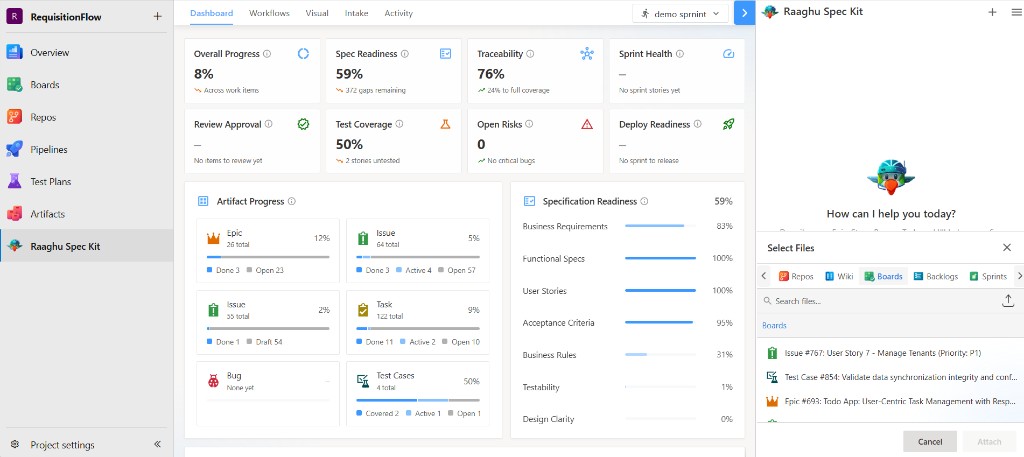
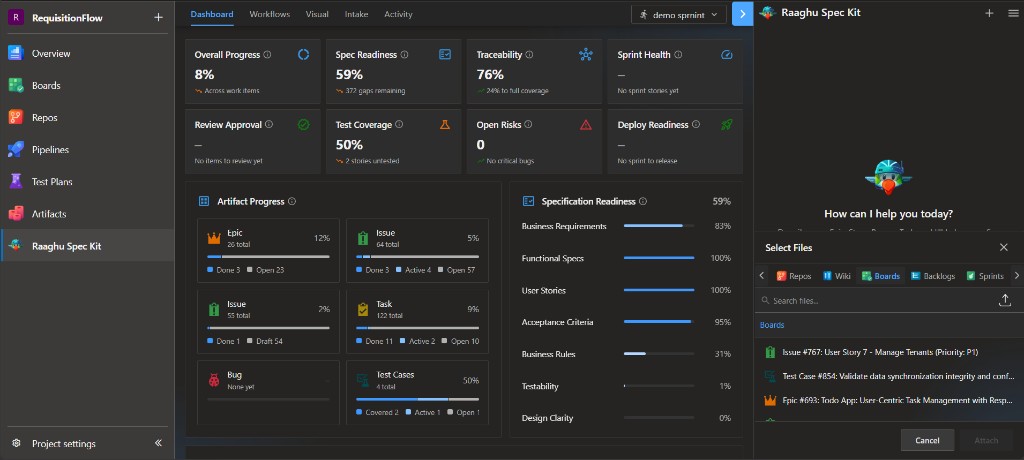
Click the paperclip icon to open Select Files. Choose from Repos, Wiki, Boards, Backlogs, and more, or upload from your computer (up to 4 files). Then click Attach.
New chat and history
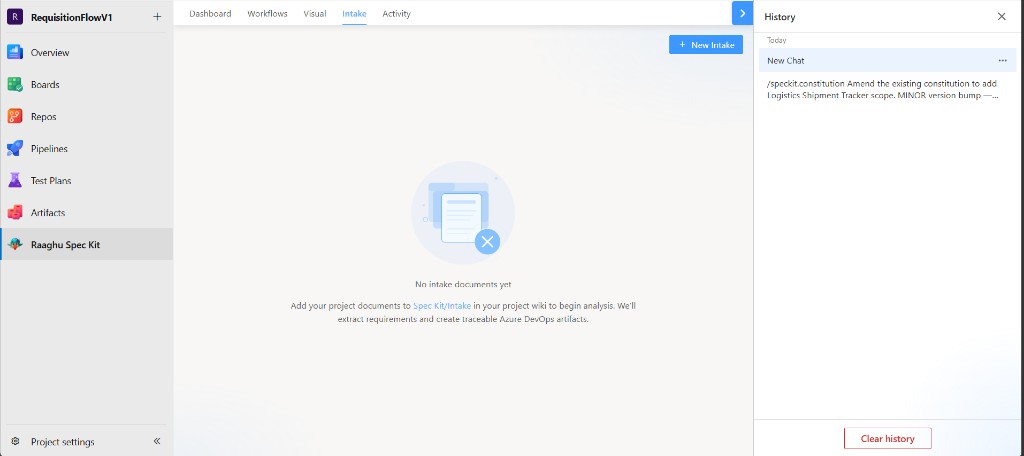
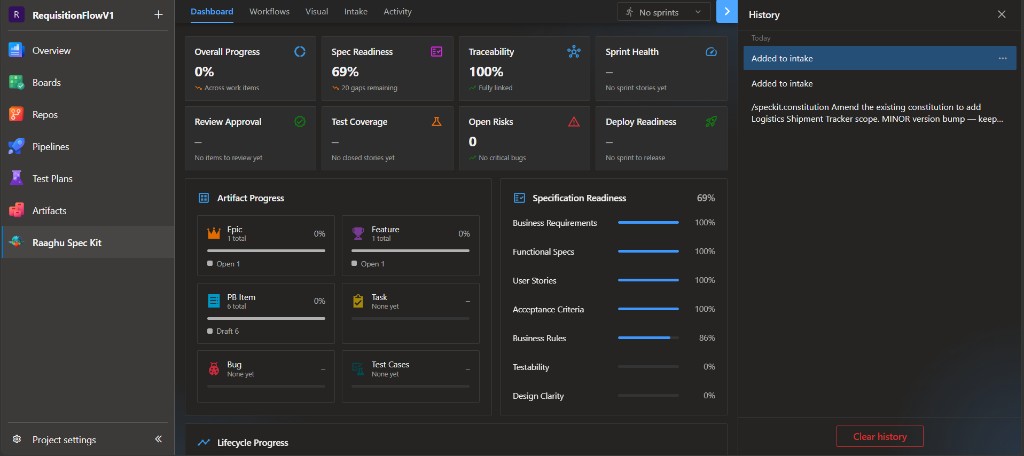
Use + to start a new chat. At 20 messages you get a reminder to start a new chat soon. At 25 messages you must start a new chat to continue.
The hamburger menu includes:
| Item | Purpose |
|---|---|
| History | Past chat sessions for this project |
| My AI usage | Personal hosted-AI spend |
| Contact Us | Send a message to the Raaghu team |
| Report Issue | Report a problem |
| About Us | Product name, version, and credits |
| Settings | AI and command display settings (visible to organization admins and Project Administrators only) |
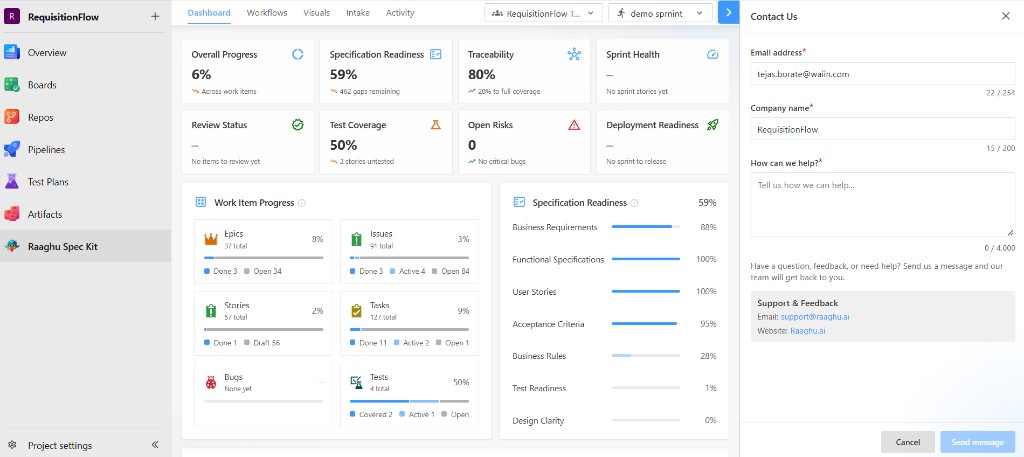
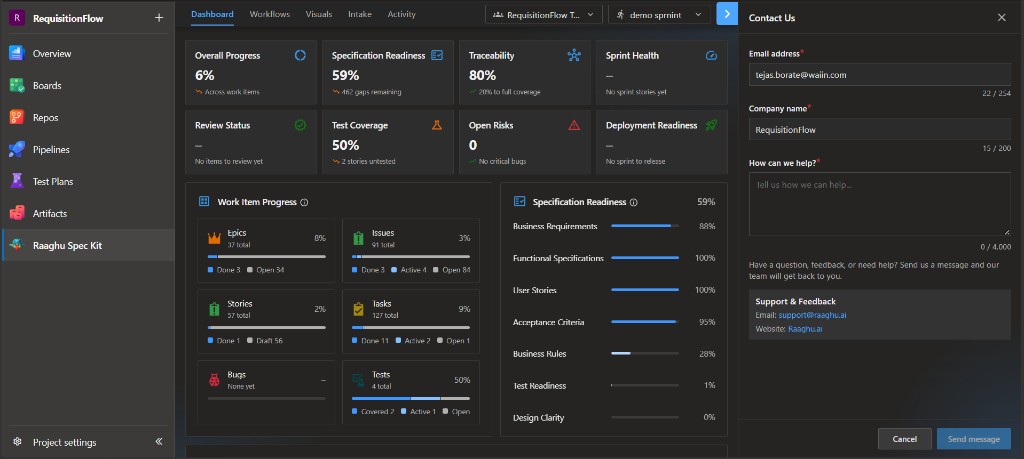
Contact Us opens a form for Email address, Company name, and How can we help? Use Send message to submit. The panel also lists Support & Feedback with support@raaghu.ai and Raaghu.ai.
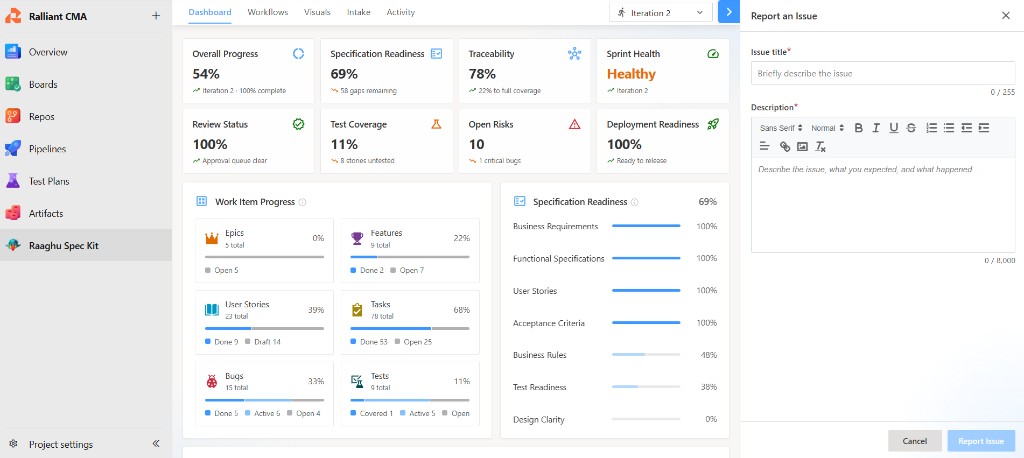
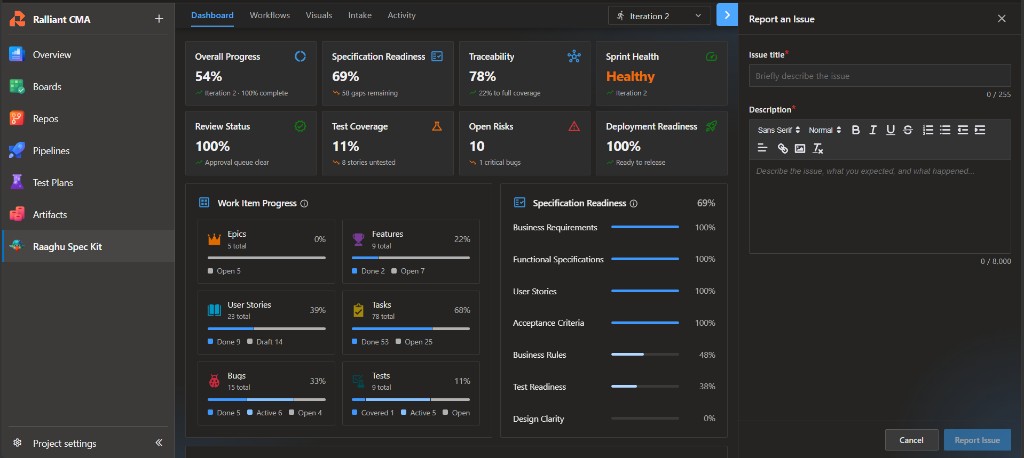
Report an Issue asks for Issue title and Description. Use Report issue to submit.
Context Menu
From Azure Boards or Queries, open the work-item Context Menu → Raaghu for review, refine, acceptance criteria, child items, and test cases. See Context Menu.