Visual
The Visual tab shows your work-item hierarchy as a connected tree. From here you can Sync Azure Boards work items from Spec Kit files (one level at a time), refine items with AI, and explore links.
If Spec Kit is not initialized yet, the right panel still shows Initialize Spec Kit. After you have a seat but before you sync a hierarchy, Visual may show "Your Spec Workspace is Ready" with + Start a New Spec Session:
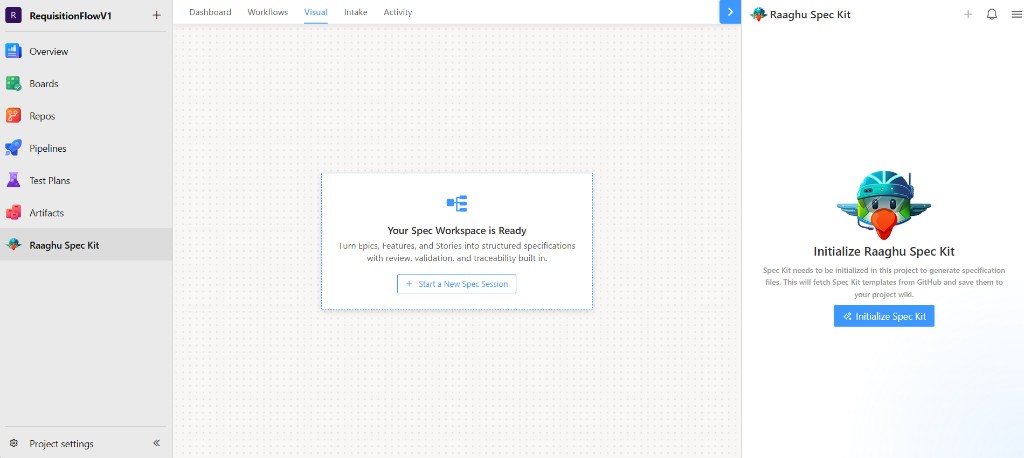
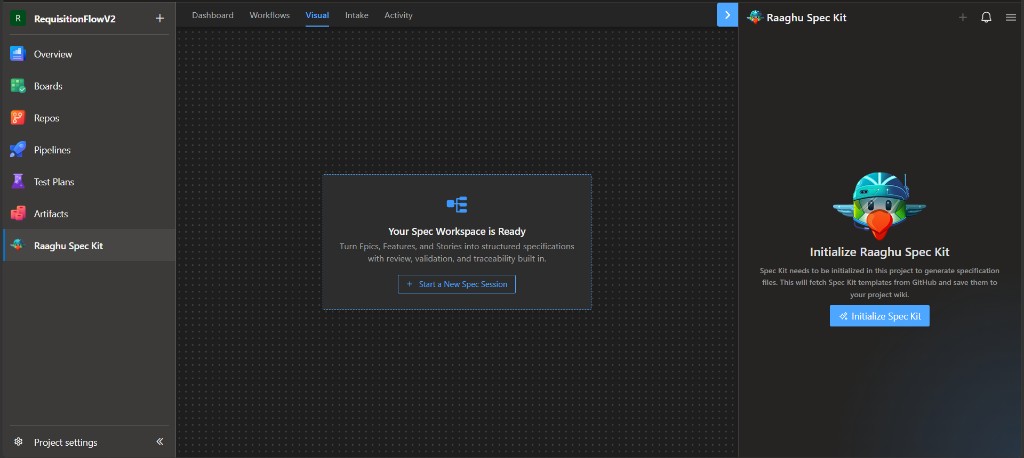
After you generate specs and sync work items, the hierarchy canvas looks like this:
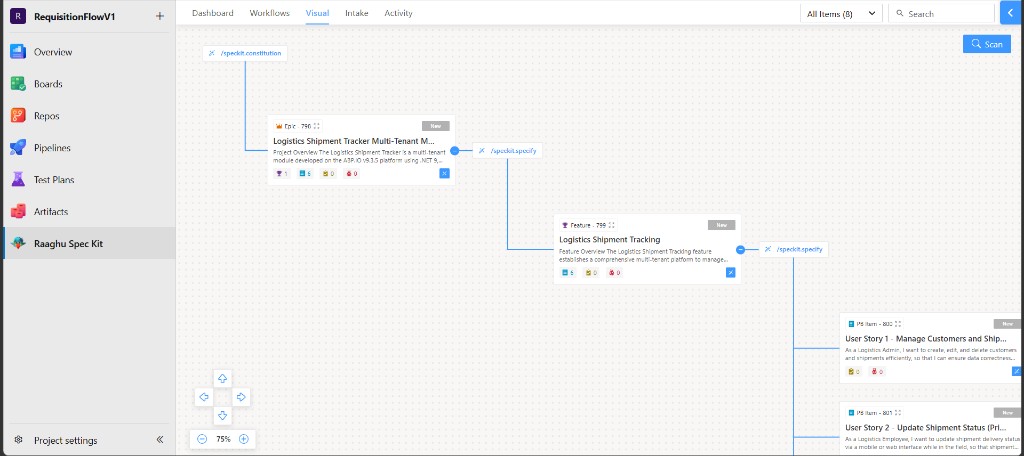
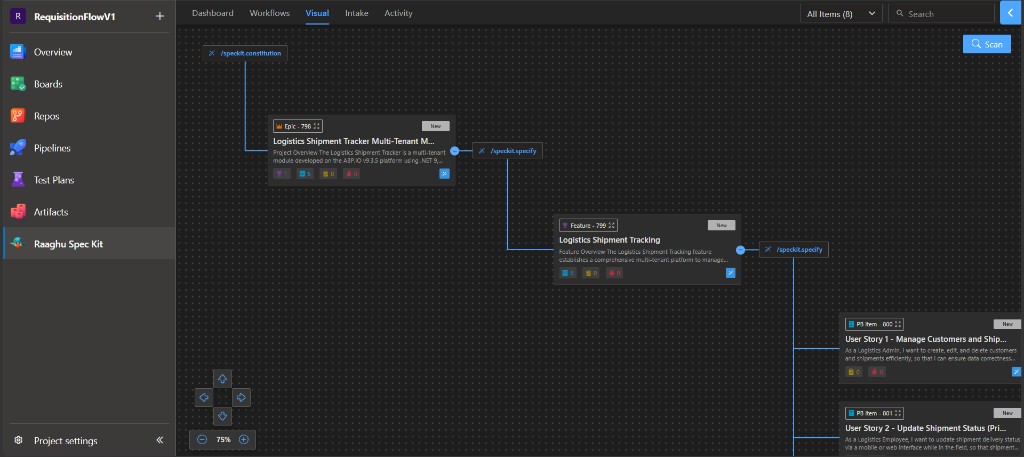
The hierarchy
flowchart LR
  C["Constitution"] --> E["Epic"]
  E --> F["Feature"]
  F --> U["User Story"]
  U --> T["Task"]
The Constitution node is an anchor from your Spec Kit constitution — it is not an Azure Boards work item. Epics, Features, User Stories, and Tasks are Boards items. Type names follow your process template (for example, "Issue" instead of "Feature").
Each card shows type, ID, status, title, child counts, and a magic-wand button. Click the title to open the work item in Azure DevOps.
Sync and refine
Open a card's magic-wand menu:
| Sync from | Creates | Requires in Wiki |
|---|---|---|
| Constitution | Epics | Kept constitution |
| Epic | Features | At least one feature spec |
| Feature | User Stories | Feature spec |
| User Story | Tasks | Feature tasks |
Work level by level. Sync compares Spec Kit files to existing items and creates or updates them — it does not create duplicates. Syncing one level does not automatically create all deeper children.
Refine opens the item in chat so you can improve it with AI.
If Sync is disabled, generate the required files first with Spec Kit Commands.
Navigate the canvas
- Expand or collapse branches with the count badges.
- Filter by type and search by title in the toolbar.
- Pan and zoom the canvas.
Use Scan to find work items that are not connected to the hierarchy yet.