Intake
The Intake tab is where you bring requirement documents (BRD, PRD, and similar) into the project. AI analyzes each document and helps you create Azure Boards work items.
Documents are stored under Speckit/intake/ in the wiki.
Prerequisites: Spec Kit must be initialized and an AI provider must be connected. If Spec Kit is not initialized you see "Spec Kit Required". If no AI provider is configured you see "LLM required" or "LLM is not configured".
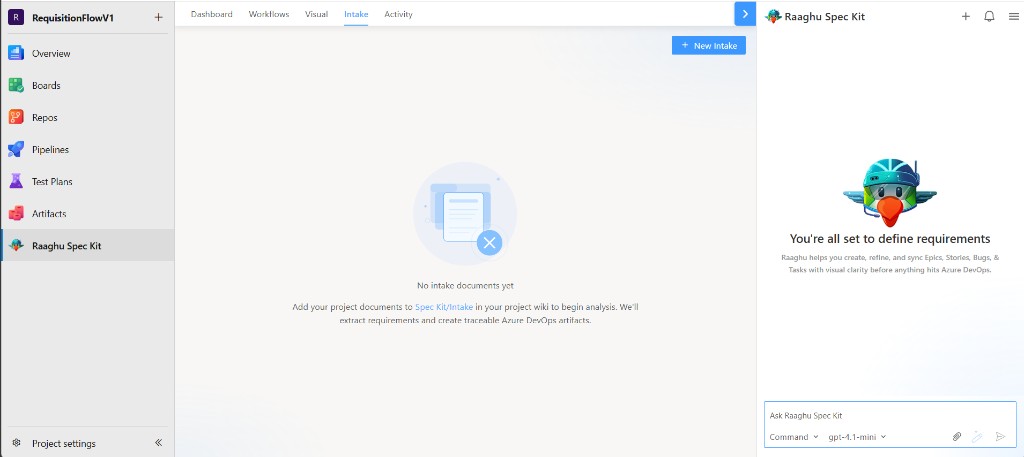
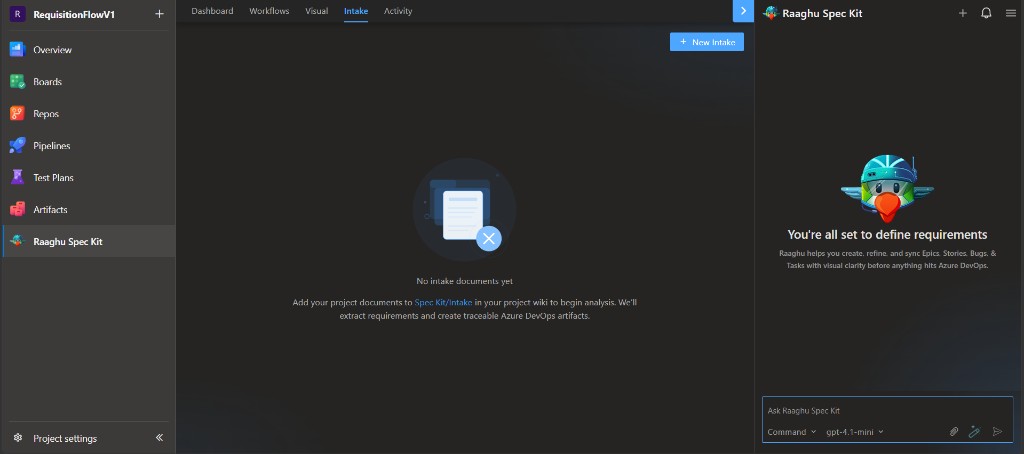
Add a document
- Click + New intake.
- Choose files from Repos, Wiki, Boards, Backlogs, and other Azure DevOps sources, or Upload from computer.
- Select up to 4 files at a time, then click Add to intake.
Supported types include .md, .txt, .docx, .pdf, and common text formats. Text-based requirement documents work best. For large documents, put the most important requirements near the top — only the first portion is analyzed.
The extension saves a copy to the wiki, runs the AI analysis, and shows "Intake analysis complete" when it finishes.
Read the analysis
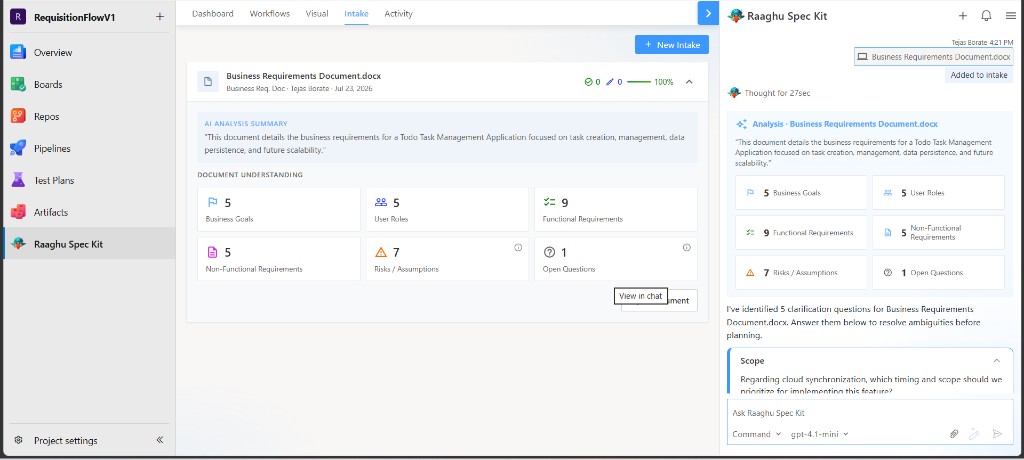
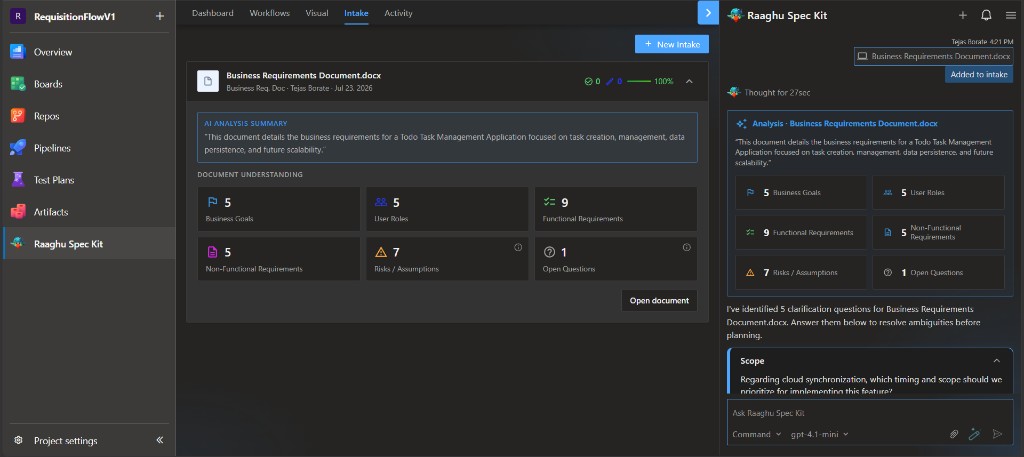
Each document appears as a card. Expand it to see:
- AI Analysis Summary — a short description of the document
- Document Understanding — counts for:
| Category | Meaning |
|---|---|
| Business Goals | High-level objectives |
| User Roles | User types / personas |
| Functional Requirements | What the system must do |
| Non-Functional Requirements | Performance, security, and similar |
| Risks / Assumptions | Open risks (review in chat) |
| Open Questions | Unresolved questions (review in chat) |
Chat may also ask clarification questions (for example under Scope) so you can resolve ambiguities before creating work items.
Create work items
After analysis, chat suggests Azure Boards work items:
- For each suggestion, choose Create or Skip.
- You can edit Title, Description, and Acceptance criteria first.
- When you save, the item is created in Azure Boards and linked back to the source document.
Created and modified items appear on the document card.