Settings
The Settings dialog is where you connect AI providers and choose how Spec Kit command labels appear. Open it from the Spec Kit hamburger menu (top-right) → Settings.
Two different “Organization Settings”
| Name in the product | Where | Purpose |
|---|---|---|
| Settings → Organization Settings tab | Inside the Spec Kit hub (hamburger menu) | Shared AI keys for the organization |
| Organization settings → Raaghu Spec Kit | Azure DevOps organization settings | Subscription, seats, credits, usage |
This page covers the in-extension Settings dialog only. For billing and seats, see Organization Settings.
Tabs
| Tab | Purpose | Who can use it |
|---|---|---|
| Project Settings | AI for this project; command display mode | Everyone with hub access |
| Organization Settings | Shared AI for the whole organization | Org admins only |
| AI Settings | Turn Raaghu-hosted AI on or off | Visible when subscribed; admins can edit |
| Deployment | On-premises server connection | Azure DevOps Server org admins only |
Bring your own key vs Raaghu-hosted AI
- Bring your own key (BYOK) — provide Azure OpenAI, OpenAI, or Claude credentials. You pay your provider directly.
- Raaghu-hosted AI — enable it in AI Settings to use your organization's Raaghu credits instead of your own keys.
Fastest way to unblock chat
- If an admin already set shared org AI or hosted AI → leave Project Settings on Admin.
- Otherwise choose Custom, add one provider, Save, and set it as Default.
- If chat still shows "LLM is not configured", ask an admin to set org defaults or enable Raaghu-hosted AI.
Project Settings
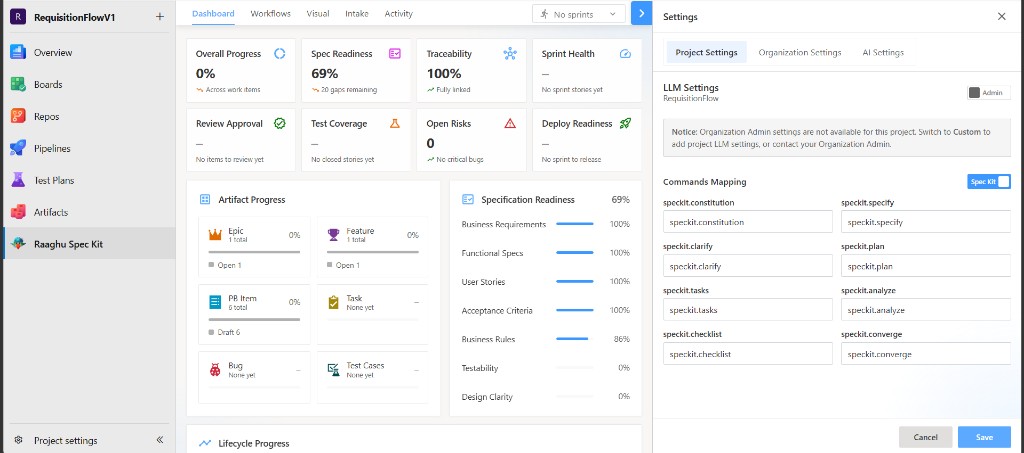
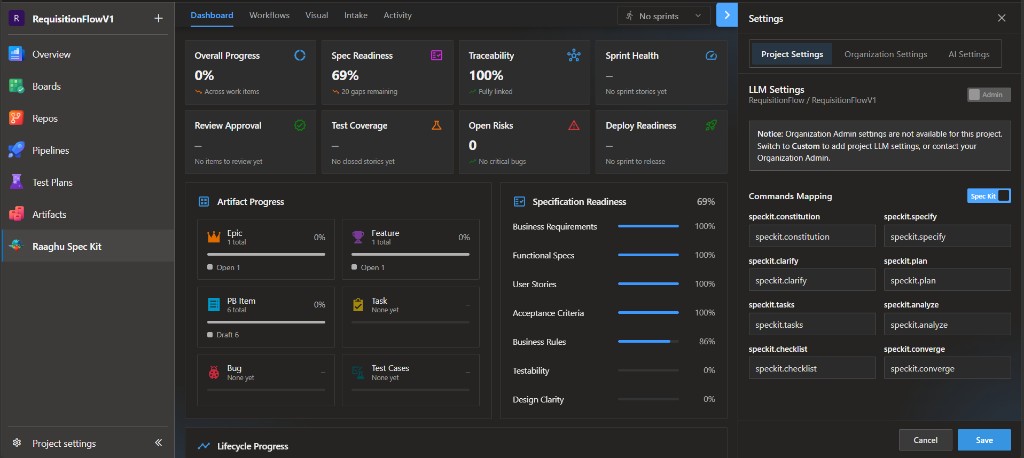
A toggle controls where this project gets its AI credentials:
- Admin — use the shared organization credentials set by an administrator.
- Custom — use project-specific credentials that you add here.
Under LLM Settings, click + to add a configuration:
| Field | Notes |
|---|---|
| Title | A name for this configuration |
| AI Provider | Azure OpenAI, OpenAI, or Claude (Anthropic) |
| Model | Model name |
| Endpoint | Required for Azure OpenAI |
| API Version | Azure OpenAI only (for example, 2024-10-21) |
| API Key | Your provider's API key |
You can add multiple configurations and mark one as Default. Credentials are encrypted.
Organization Settings tab (shared AI)
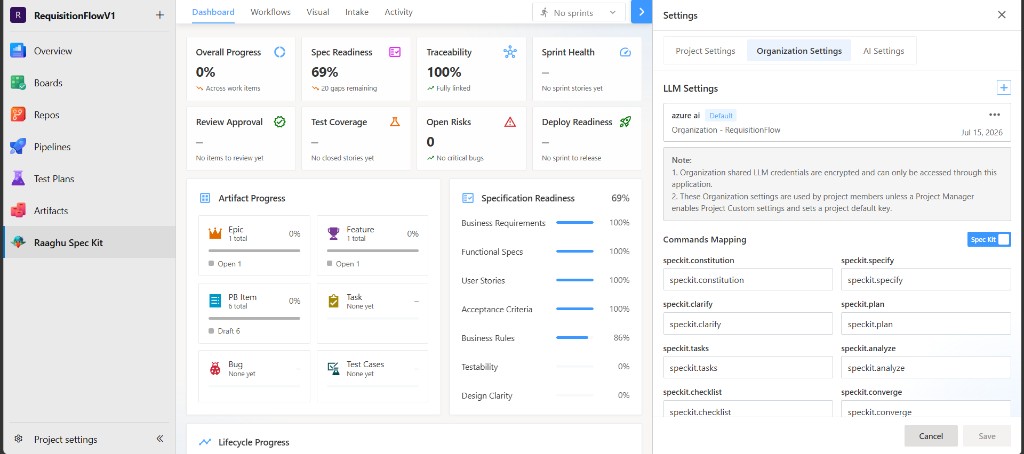
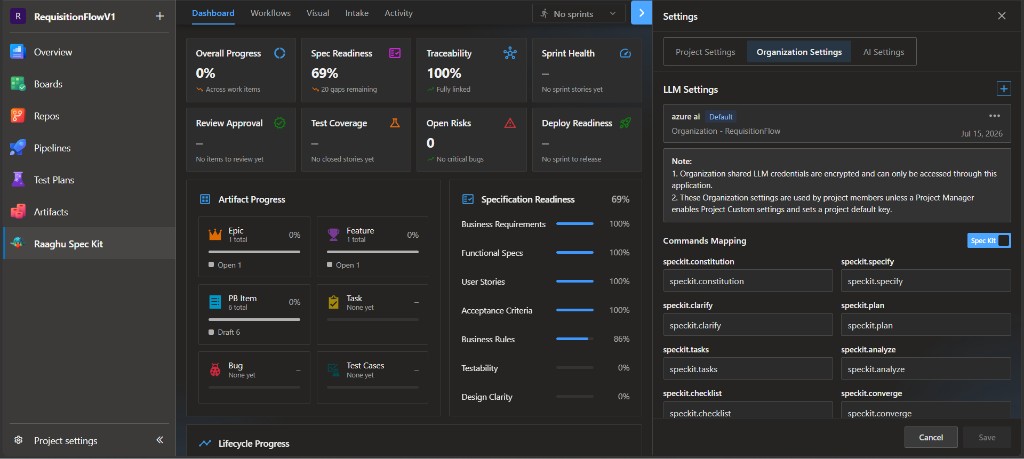
Admins add organization-wide AI credentials used by projects in Admin mode. Adding, editing, deleting, and setting the default are admin-only actions.
Commands Mapping
Both the Project and Organization tabs include Commands Mapping. A toggle switches how Spec Kit commands appear in the chat Command dropdown:
- Default — friendly names (for example, "Create Specification")
- Spec Kit — technical IDs (for example,
speckit.constitution)
If the dropdown shows "Create Specification", that is the same as /speckit.specify. Labels are read-only; you cannot type custom names.
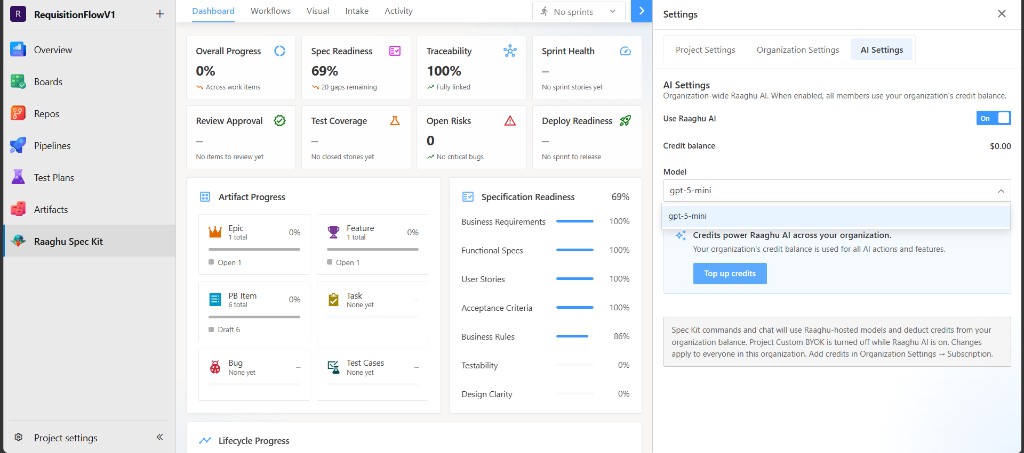
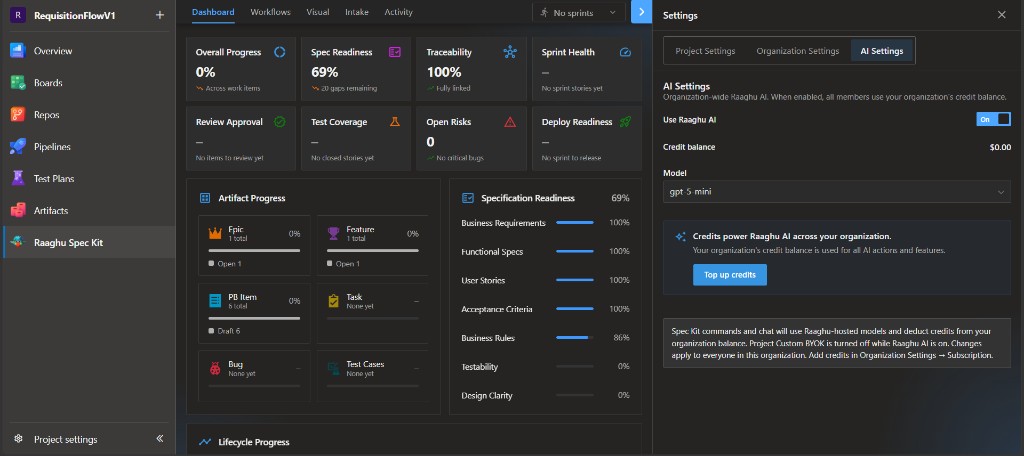
AI Settings (Raaghu-hosted AI)
The AI Settings tab appears when your organization has an active Spec Kit subscription.
- Use Raaghu AI — turn hosted AI on or off
- Balance — organization's current hosted-AI balance
- Model — which hosted model to use
Only organization admins can change the toggle or model. Top-ups are managed in the billing hub: Organization Settings.
Deployment (on-premises only)
On Azure DevOps Server, organization admins may see a Deployment tab. Use it to configure the server connection (same as landing-page Server Deployment Setup when you see "Setup Required"). Cloud Azure DevOps organizations do not show this tab.