Access Requests
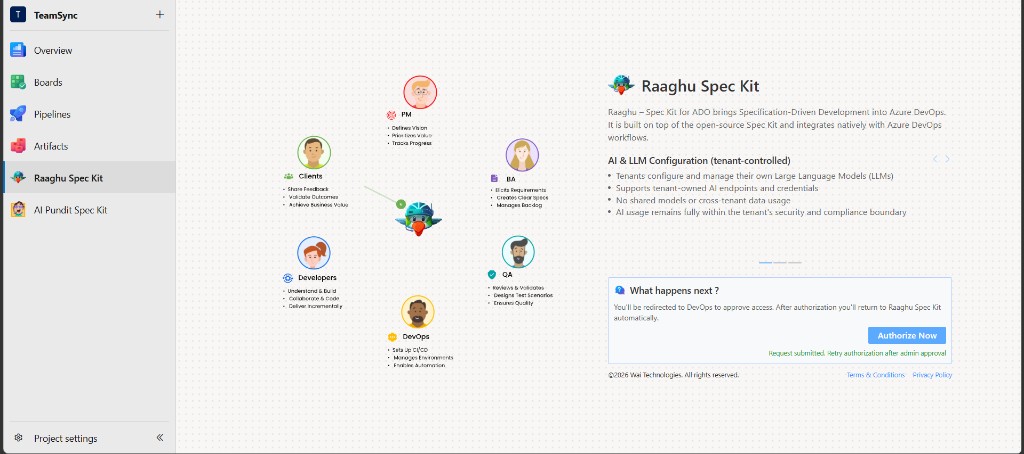
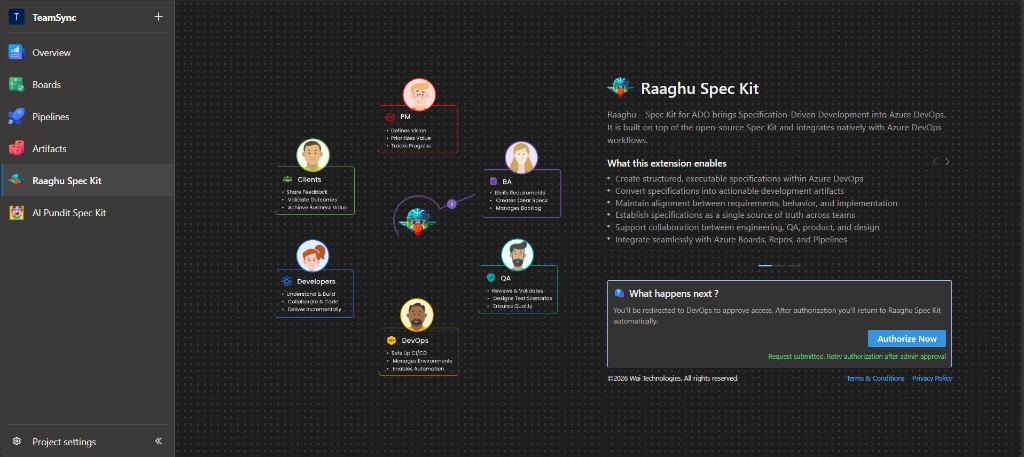
When a new user opens Raaghu Spec Kit for the first time, they may need an administrator to approve their access before they can use the extension.
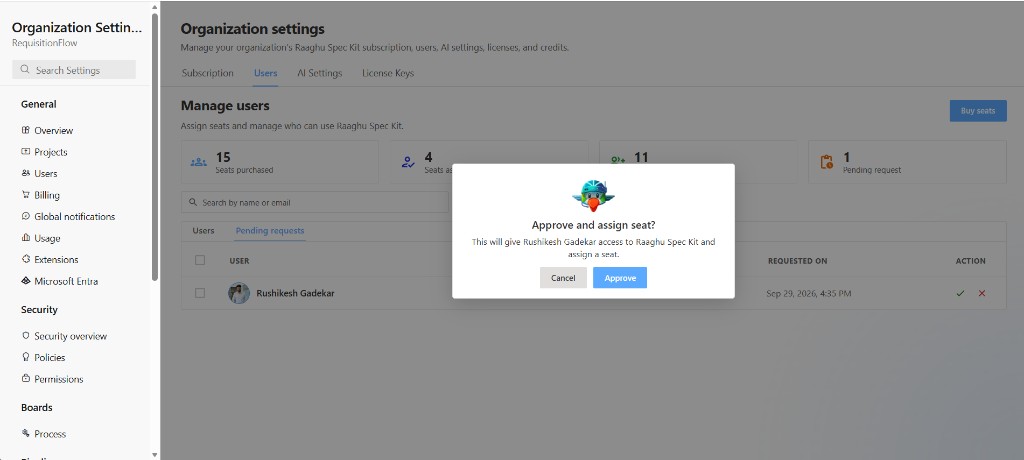
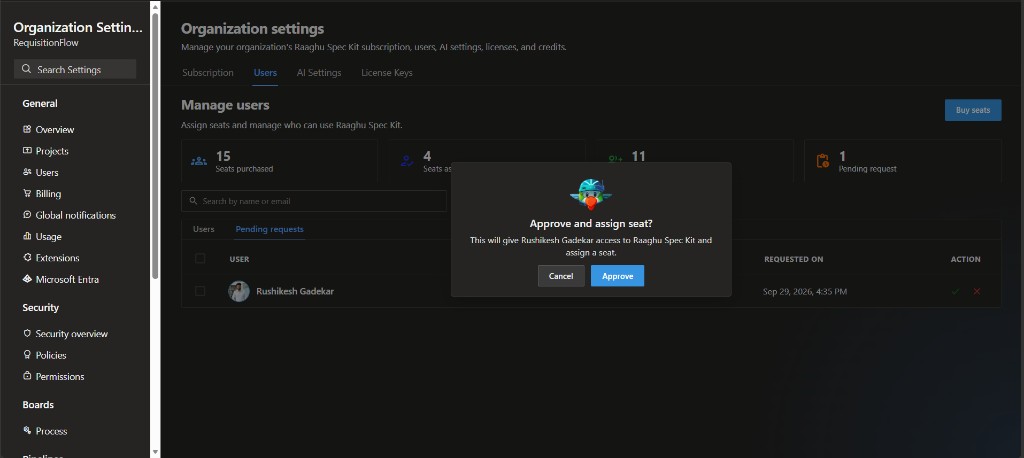
Important: Approving a request also assigns a seat in the same step (Approve and assign seat?). If there are not enough seats, free one on the Users tab or buy more seats first.
For users: requesting access
- Open Raaghu Spec Kit and click Authorize Now (see Installation and Launch).
- Complete Microsoft sign-in.
- If your organization requires approval, you see:
"Request submitted. Retry authorization after admin approval"
- After an admin approves you (and assigns a seat), click Authorize Now again.
For administrators: approving or rejecting requests
Access requests are managed in Azure DevOps Organization settings (not inside the Raaghu Spec Kit app header).
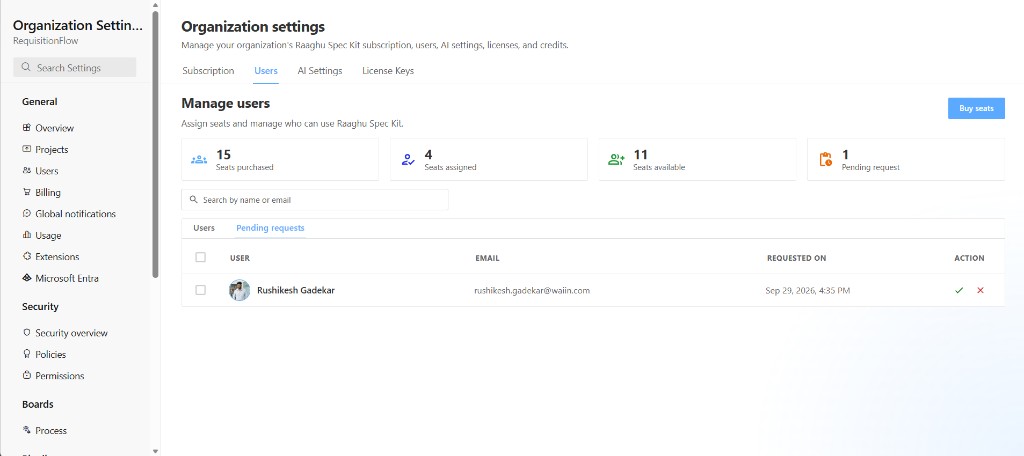
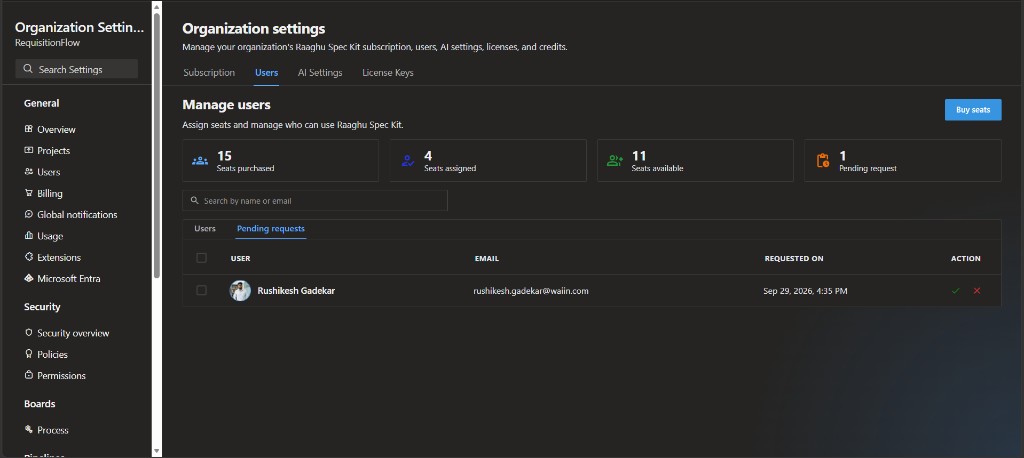
- Open Organization settings → Extensions → Raaghu Spec Kit → Users.
- Open the Pending requests sub-tab. A badge on the sub-tab (and the Pending Requests stat tile) shows how many requests are waiting.
- Review each row. You can Search by name or email.
- Choose an action:
| Action | Result |
|---|---|
| Approve | Confirms Approve and assign seat?, then grants access and assigns a seat |
| Reject | Rejects the request |
| Approve selected | Approves every selected pending request and assigns a seat to each (select two or more rows first) |
When there are no pending requests, the table shows "No pending access requests.".
To assign or unassign seats later, use the Users sub-tab (Assign / Unassign, or bulk Assign selected / Unassign selected).