Organization Settings
Organization Settings is the Azure DevOps hub for Spec Kit subscription, seats, access requests, users, Configurations, license keys, and AI credit budgets.
How to open it
- In Azure DevOps, open Organization settings (organization-level settings, not project settings).
- In the left menu, select Raaghu Spec Kit.
Only organization administrators can open this hub. Non-admins see a locked message.
Tabs: Subscription, Users, Configurations, License Keys, and Raaghu AI Credits.
This hub is separate from the in-extension Settings dialog (hamburger menu), which is used for project LLM keys, Raaghu AI for the current project, and command labels. Org-wide LLM connections and per-project AI permissions are managed here under Configurations.
Subscription
The Subscription tab manages your plan and billing. Raaghu Spec Kit is the Professional Plan at $9 per seat / month (USD).
Getting started (not subscribed yet)
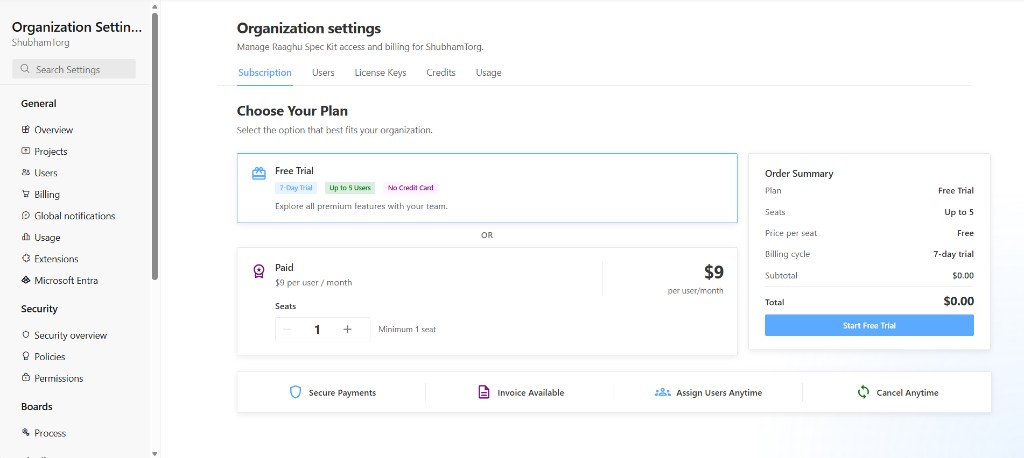
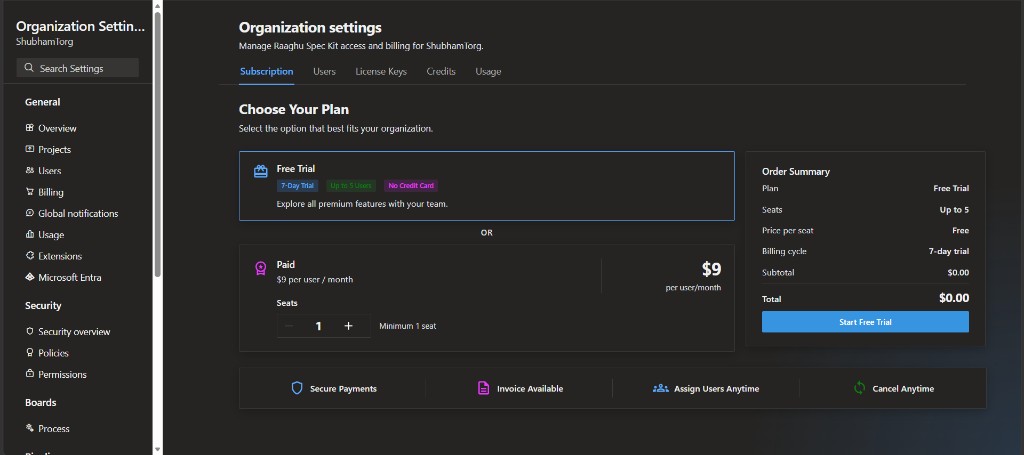
Eligible new organizations see a Choose Your Plan screen (tenant admins only, when the org is trial-eligible):
- Select Free Trial or Paid.
- For Free Trial — review the order summary (Up to 5 seats, 7-day trial, $0.00), then click Start Free Trial. No credit card is required.
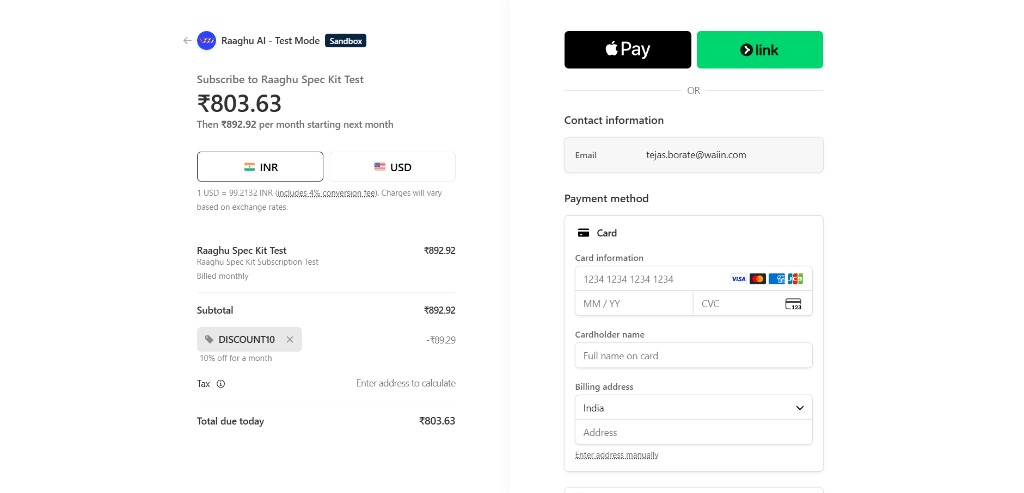
- For Paid — set seats with − / +, then click Subscribe Now and complete Stripe checkout. If you have a promotion code, enter it on the checkout page.
- Assign seats to team members on the Users tab.
If the organization is not trial-eligible (for example, it already used a trial or had a prior license), the tab shows the paid-only path: choose seats, then Subscribe for $…/month. You can also activate a key on License Keys instead of Stripe checkout.
After the trial ends, keep access by completing paid checkout here, or by activating a key on License Keys.
Promotion code
At Stripe checkout, you can enter a promotion code if one was issued to you. The discount appears in the order summary before you pay (you can remove the code if needed).
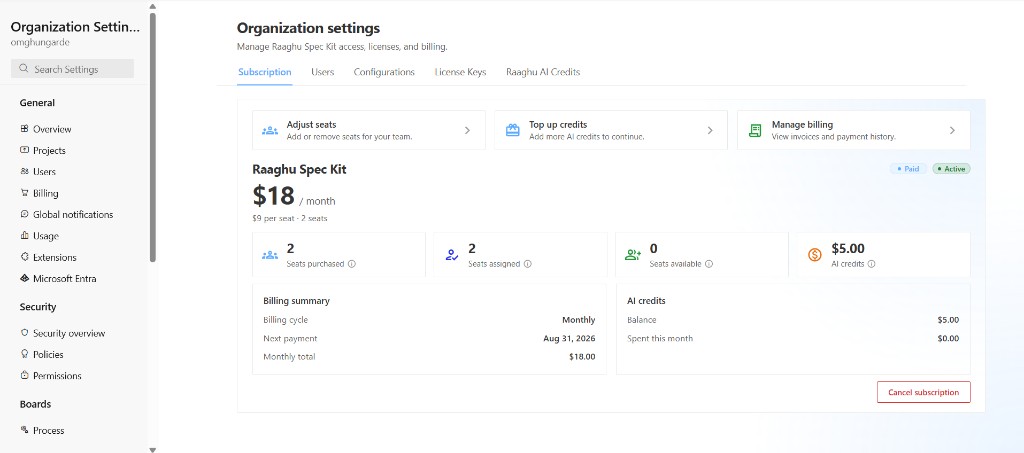
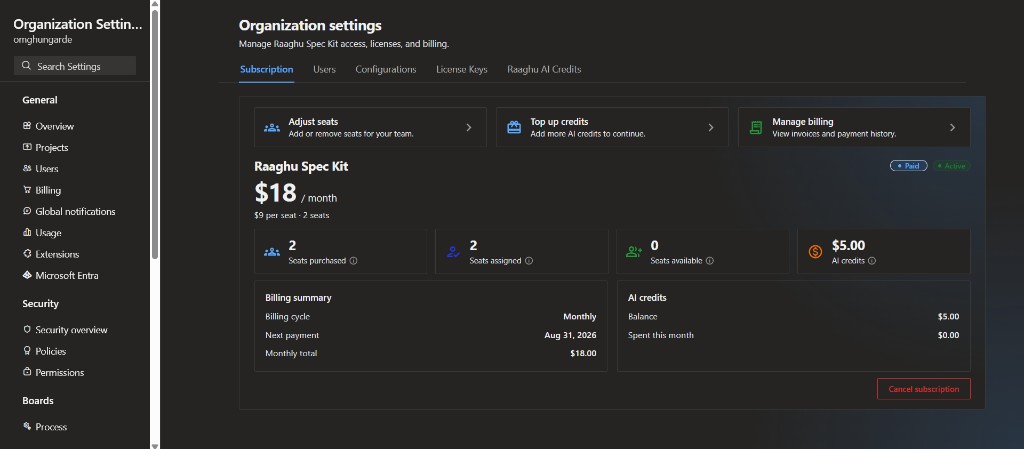
Once subscribed (paid, trial, or license key), the tab shows plan status (Active, Past due, Canceled, Canceling, and similar) and these actions:
| Action | Description |
|---|---|
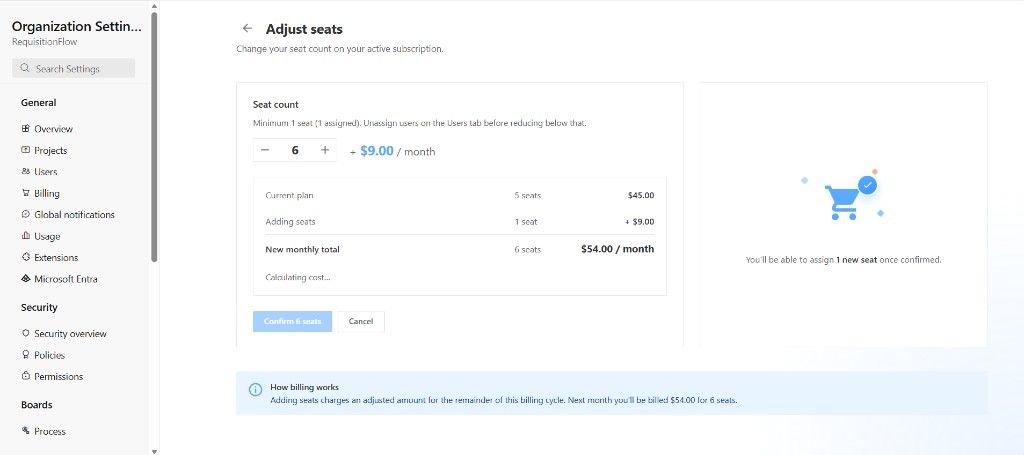
| Adjust Seats | Add or remove seats. Increases apply right away; decreases are scheduled for the next billing period (use Undo seat change if needed). During a free trial, adding seats is free until the trial ends. |
| Top up Credits | Add hosted-AI balance ($10, $25, $50, $100, or a custom amount between $5 and $10,000). |
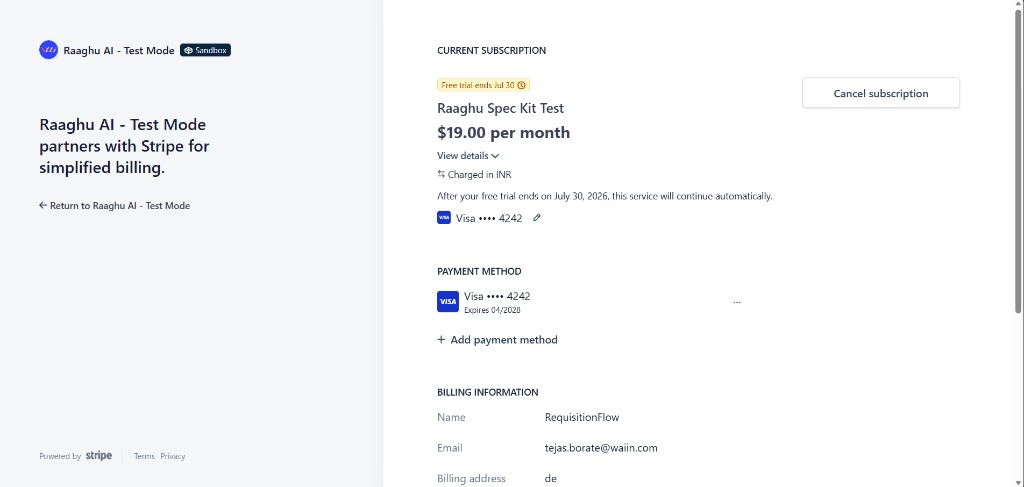
| Manage Billings | Open the Stripe portal for invoices and payment methods. During a free trial, this action is framed as upgrading to a paid plan when you are ready. |
| Cancel subscription / Undo cancellation | Cancel schedules end-of-period termination. While status is Canceling, click Undo cancellation to keep the plan. Cancel is hidden while the organization is on a free trial. |
You also see seats purchased / assigned / available and AI credit balance vs spend.
- Paid (card billing): Billing summary shows billing cycle, next payment date, and monthly total. Plan badge: Paid.
- Free trial: Plan badge shows Free trial. The summary panel is Trial summary (plan, Trial ends on, seats) instead of next payment / monthly total.
- License key: Plan badge shows License key instead of Paid, and Billing summary shows only Expires on.
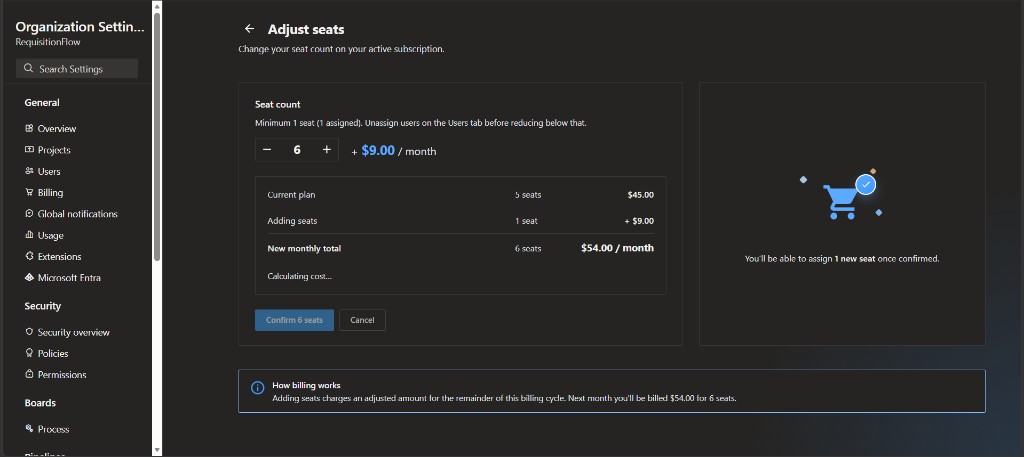
Adjust Seats
Use − / + to change the seat count, review the price breakdown, then confirm. You cannot go below the number of seats already assigned — unassign users on the Users tab first.
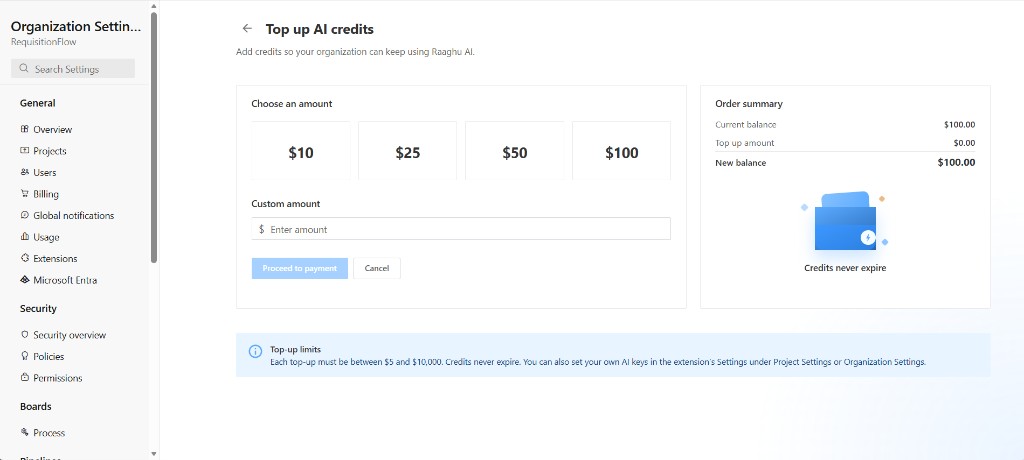
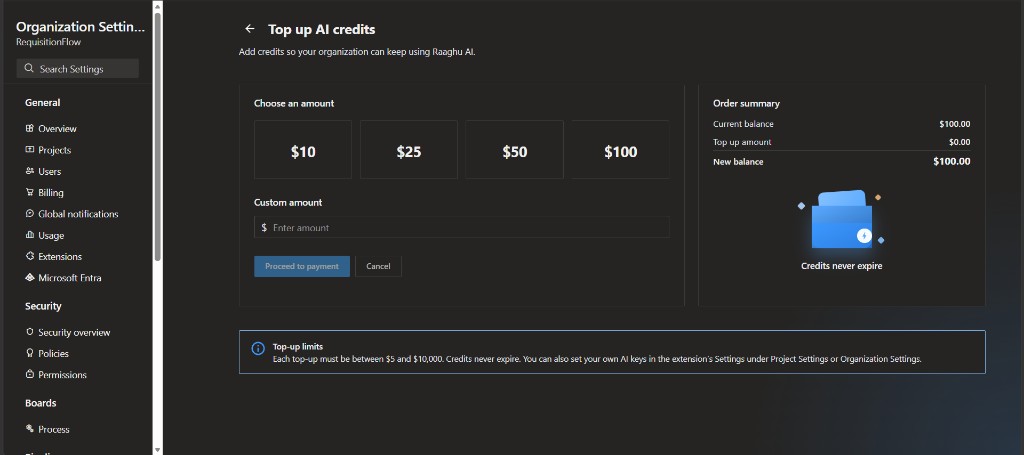
Top up Credits
Choose a preset amount ($10, $25, $50, $100) or enter a custom amount, then proceed to payment.
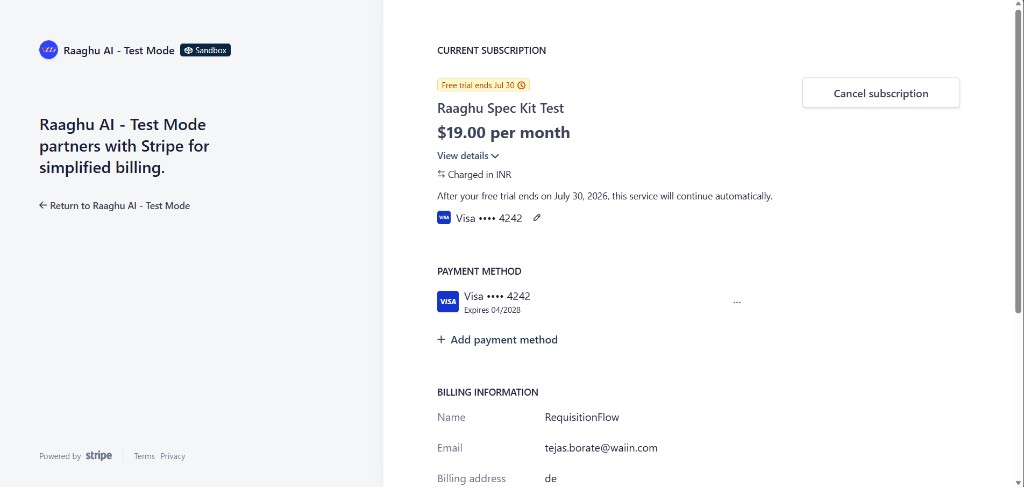
Manage Billings
Opens the Stripe customer portal for payment methods, invoices, and subscription details.
Users
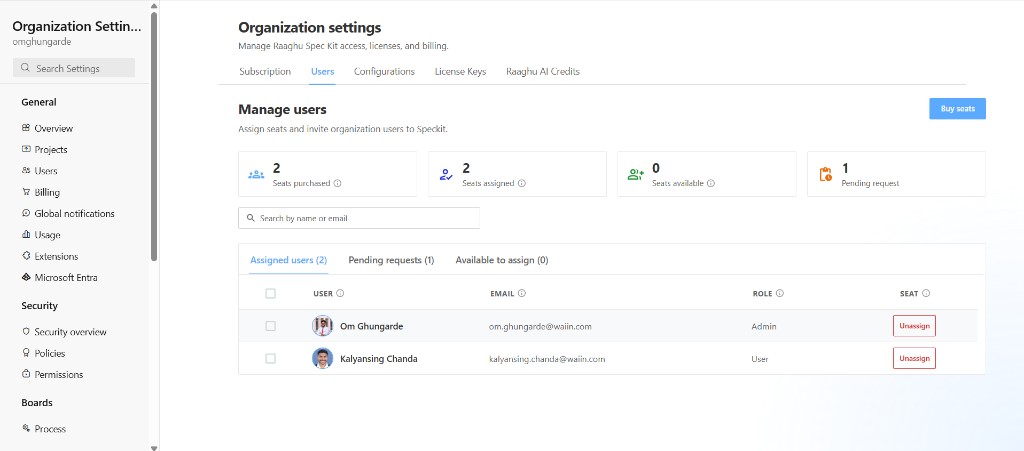
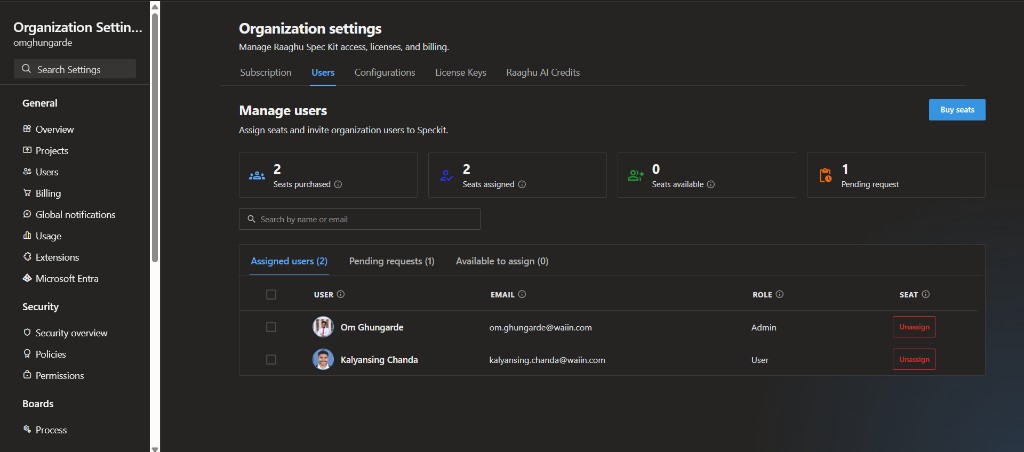
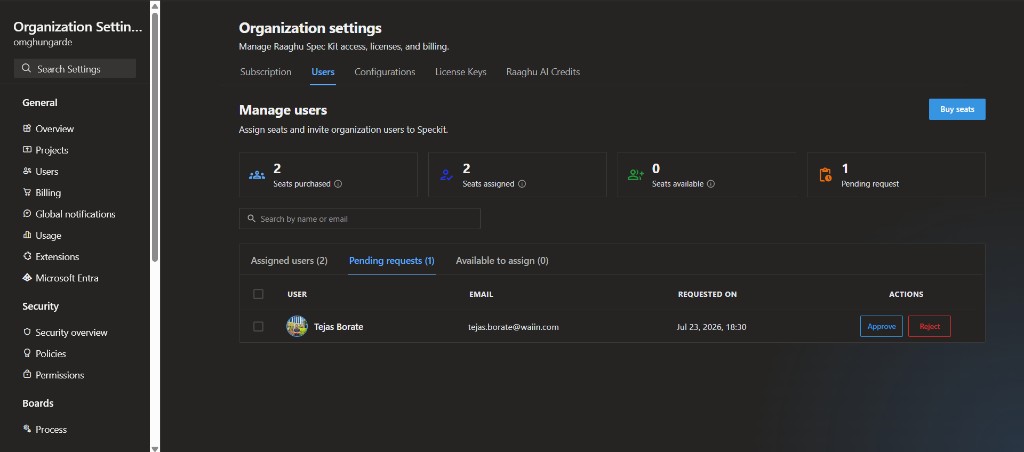
The Users tab (Manage users) is where you approve first-time access requests and assign seats.
Stats show Seats purchased, Seats assigned, Seats available, and Pending requests. Use Search by name or email across the lists. If you are subscribed, you can also open Buy seats from this page (disabled during a free trial).
Sub-tabs:
| Sub-tab | What you do |
|---|---|
| Assigned users | Members who currently have a seat. Unassign one user, or select several and Unassign selected. |
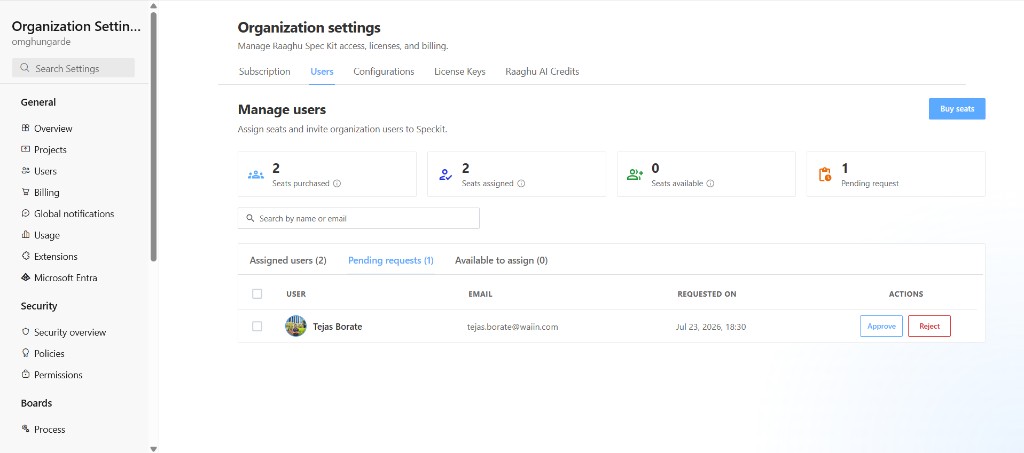
| Pending requests | First-time users waiting for approval. Per row: Approve or Reject. Select two or more rows to Approve selected. Columns: User, Email, Requested on, Actions. Empty state: "No pending access requests." |
| Available to assign | Members you can give a seat (Assign seat, or bulk assign when multiple are selected). |
Approving an access request is not enough. After you approve someone, open Available to assign and assign a seat before they can use the hub.
Important: Members need an assigned seat to use Spec Kit — even when the organization is subscribed, on trial, or using a license key.
Details: Access Requests.
Configurations
The Configurations tab is where you manage organization-wide AI provider connections and assign them to projects.
Subtitle in the product: "Manage LLM connections for your organization and assign them to individual projects."
Two sub-tabs: Personal and Project.
Personal
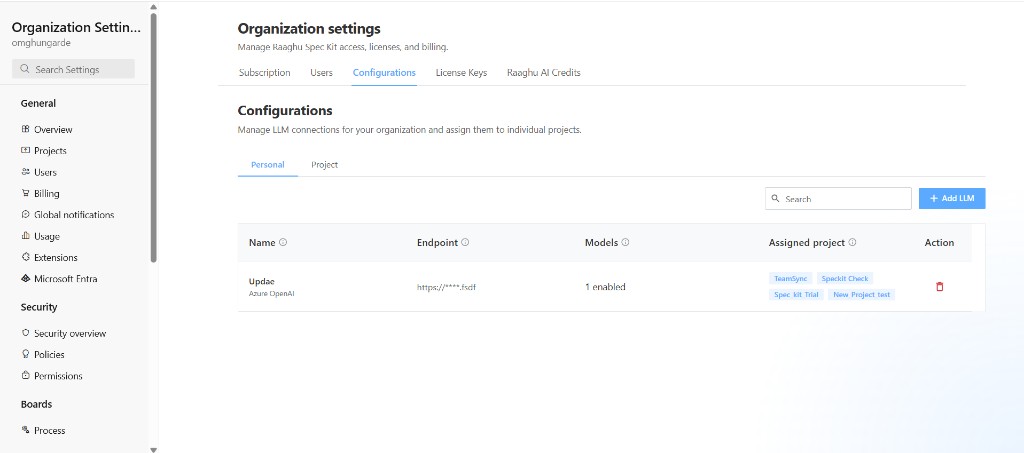
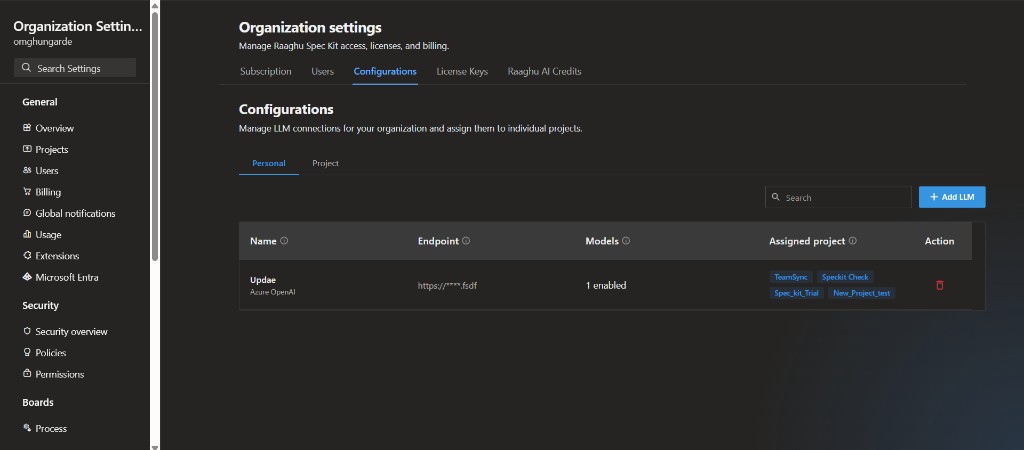
On the Personal sub-tab, create and manage shared organization connections used across projects.
- Click + Add LLM to add a connection (same fields as project Add LLM: Title, AI Provider, Model, Endpoint, API Version, API Key, Expiration).
- Review the table: Name, Endpoint (masked), Models (for example, 1 enabled), and Assigned project (badges for assigned projects).
- Use the row delete control to remove a connection when needed.
Empty state: "No organization LLM configurations yet. Click Add LLM to create one." New connections can be set as the organization default.
Project
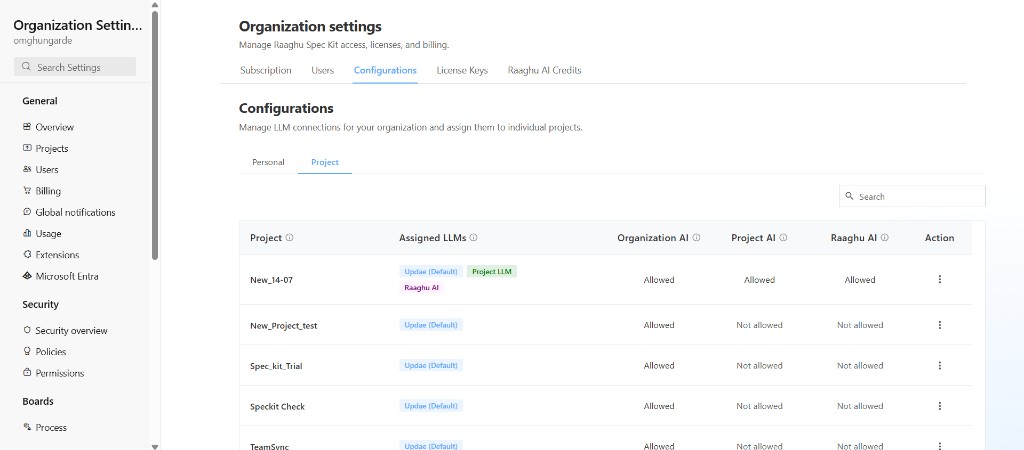
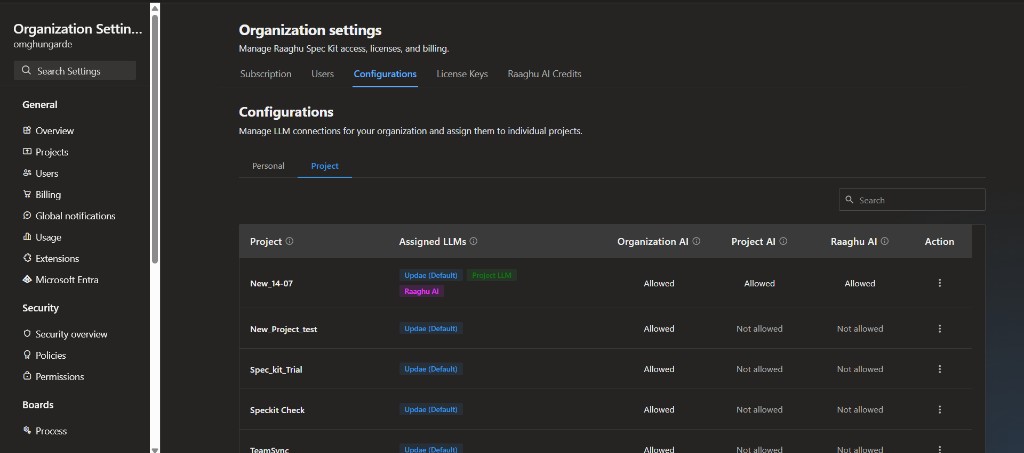
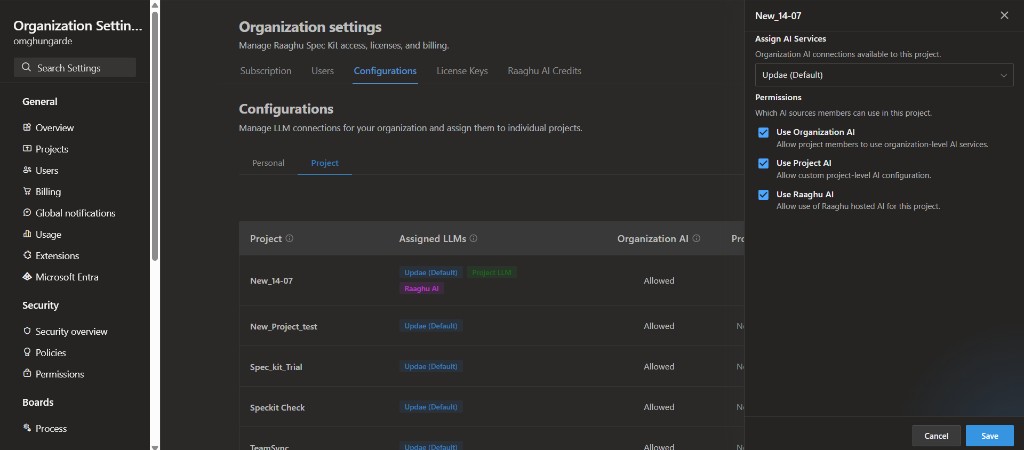
On the Project sub-tab, review which AI sources each Azure DevOps project may use:
| Column | Description |
|---|---|
| Project | Azure DevOps project name |
| Assigned LLMs | Org connections assigned to the project (for example, Azure (Default)), plus badges such as Project LLM or Raaghu AI when those sources are allowed |
| Organization AI | Whether project members can use organization-level AI services (Allowed / Not allowed) |
| Project AI | Whether custom project-level AI configuration is allowed |
| Raaghu AI | Whether Raaghu-hosted AI (credits) is allowed for this project |
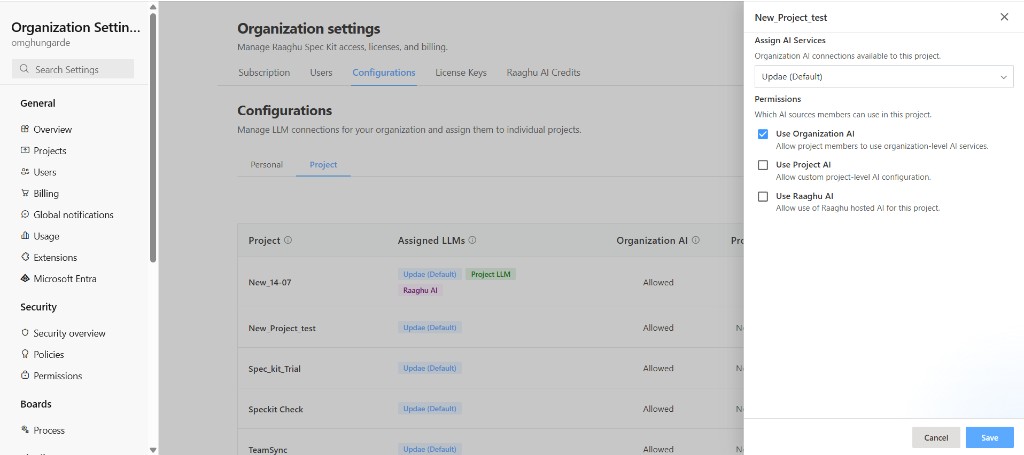
Open a project's ⋯ menu (or select the project) to edit settings in the side panel:
- Assign AI Services — choose which organization connections are available to the project (enabled when Use Organization AI is checked). Empty selection inherits the org default.
- Permissions — independently toggle Use Organization AI, Use Project AI, and Use Raaghu AI, then Save.
When Use Organization AI is unchecked, the Assigned LLMs control is disabled and may show a status label such as "Project LLM", "Raaghu AI", or "No LLM Configured".
License Keys
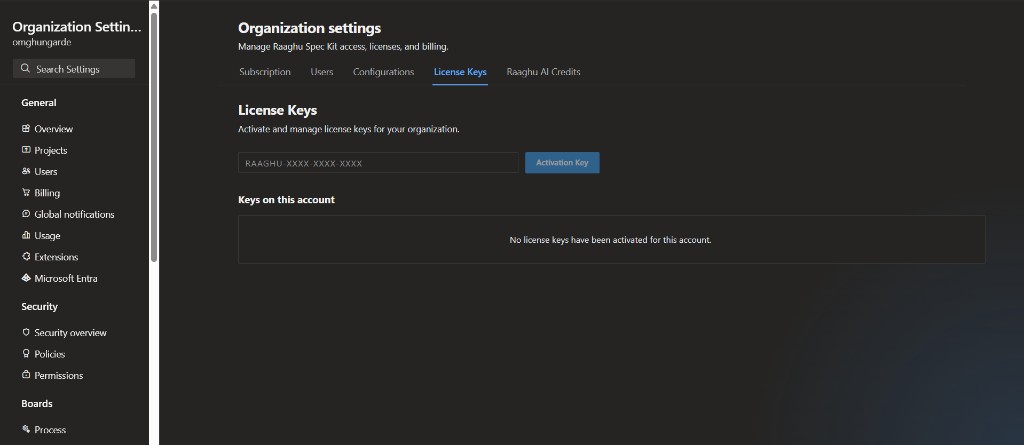
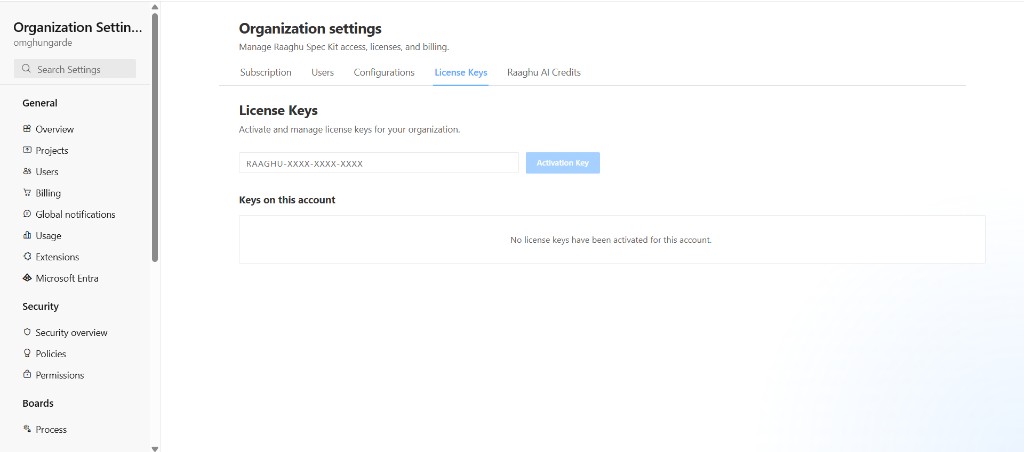
Activate and manage license keys for your organization — no Stripe checkout required.
Activate a key
- Open License Keys.
- Enter the key (format
RAAGHU-XXXX-XXXX-XXXX). - Click Activation Key — Spec Kit validates first and shows a preview (plan, type, validity).
- Click Confirm & activate to redeem, or Cancel to go back without activating.
Keys on this account lists active entitlements with:
| Column | Description |
|---|---|
| Plan | Plan tier and seat count (e.g. SpecKit · 1 seats) |
| Status | Active, Expiring (≤30 days left), or Expired |
| Expires | Relative expiry (e.g. in 30 days) or the end date |
Empty state: "No license keys have been activated for this account."
After activation, billing method becomes License key. On Subscription, the plan badge shows License key, and Billing summary shows only Expires on.
Raaghu AI Credits
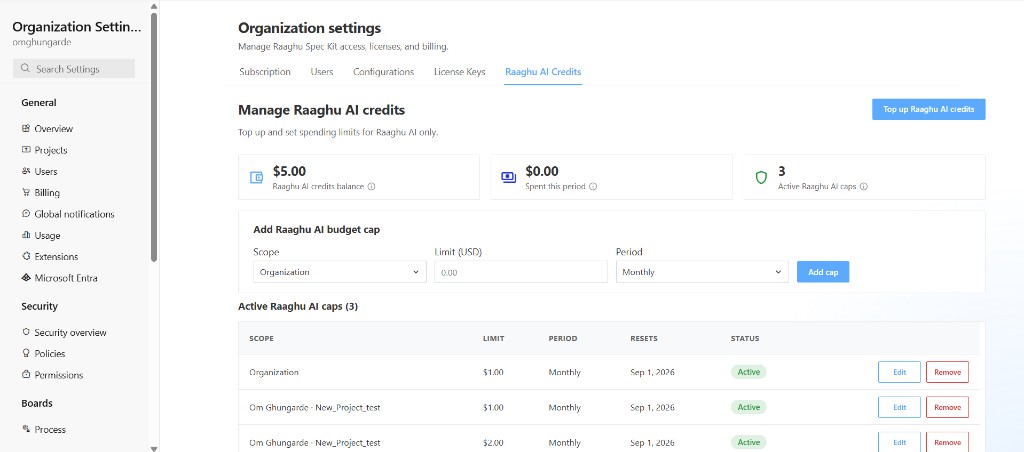
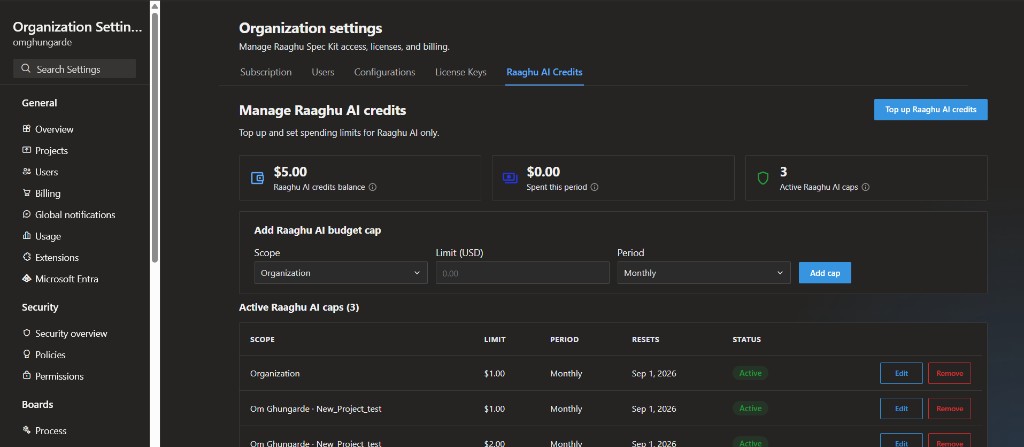
The Raaghu AI Credits tab (Manage Raaghu AI credits) is where you top up and set spending limits for Raaghu AI only.
Subtitle in the product: "Top up and set spending limits for Raaghu AI only."
Overview
- View Raaghu AI credits balance, Spent this period, and Active Raaghu AI caps
- Click Top up Raaghu AI credits on this tab (you can also top up from Subscription → Top up credits)
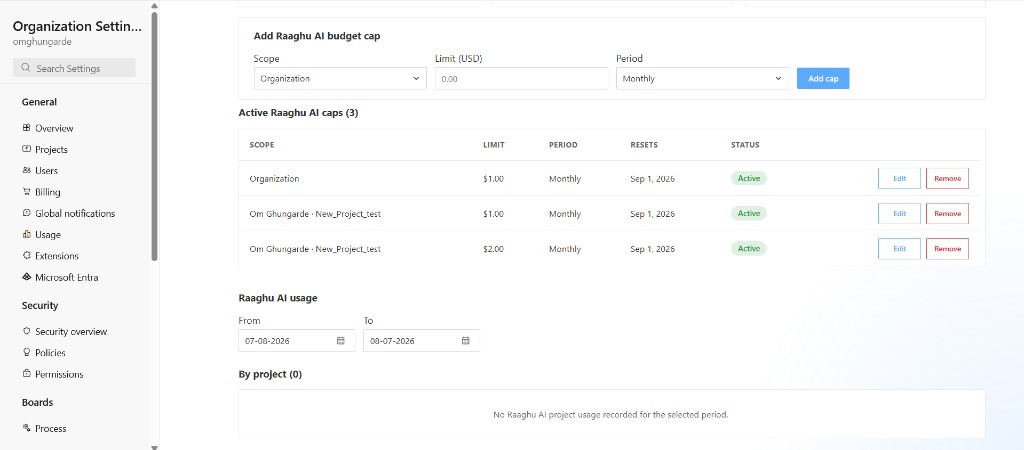
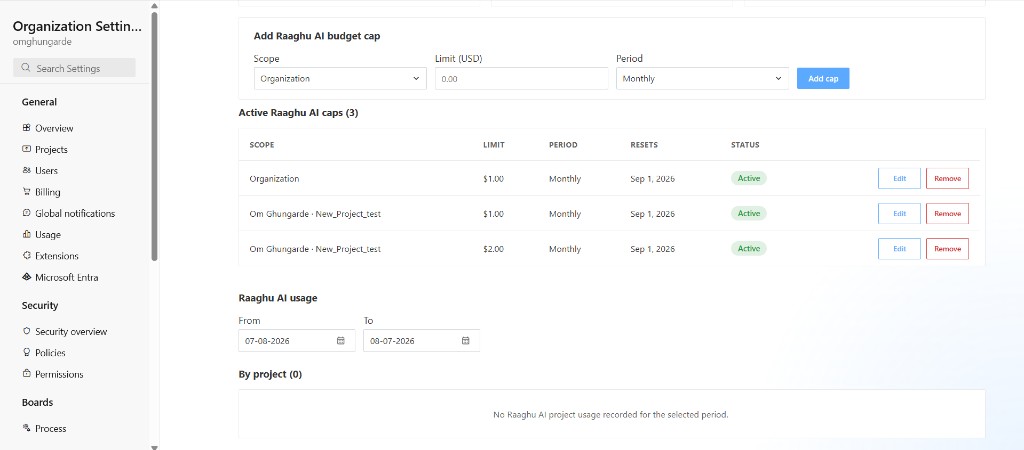
- Under Add Raaghu AI budget cap, choose Scope, Limit (USD), and Period (Monthly or Lifetime), then Add cap
- Review Active Raaghu AI caps and Edit or Remove existing caps
Raaghu AI usage
On the same tab, Raaghu AI usage shows organization-wide hosted AI spend for a From / To date range, including breakdown By project. Members see their own spend under My Usage.