Idea Assessment
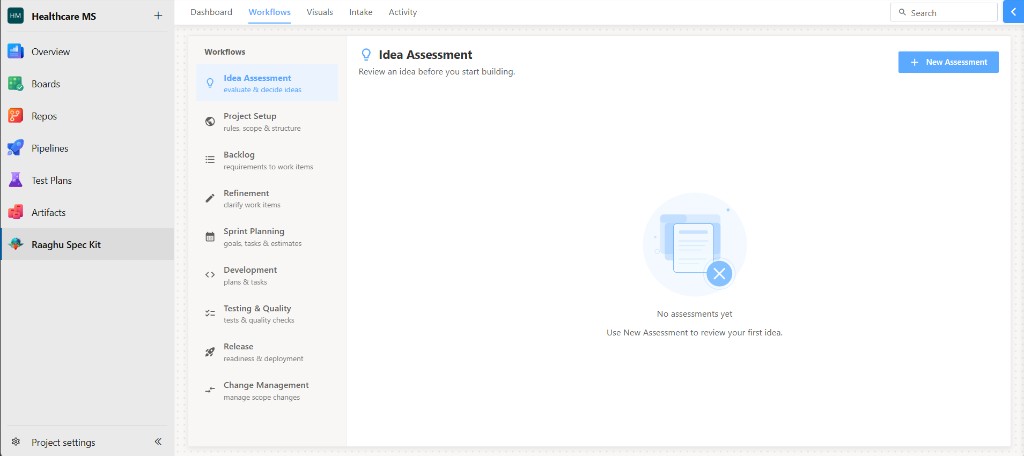
Idea Assessment helps you evaluate a product idea before you run /speckit.specify. Open it from the Workflows tab (first item in the left list: evaluate & decide ideas).
Use it when you want evidence, a clear problem statement, options, and a go / clarify / kill decision — not when you already have a ready feature to specify.
Prerequisites: Spec Kit must be initialized and an AI provider must be connected (Settings).
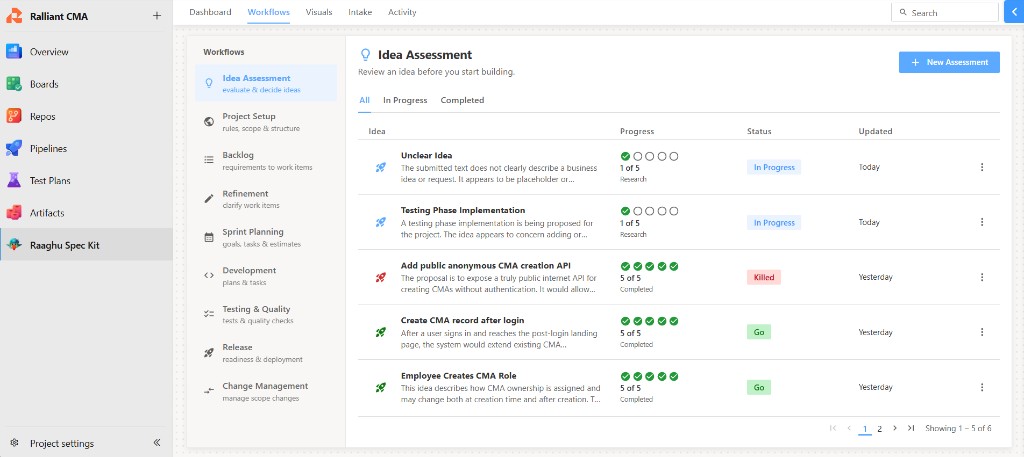
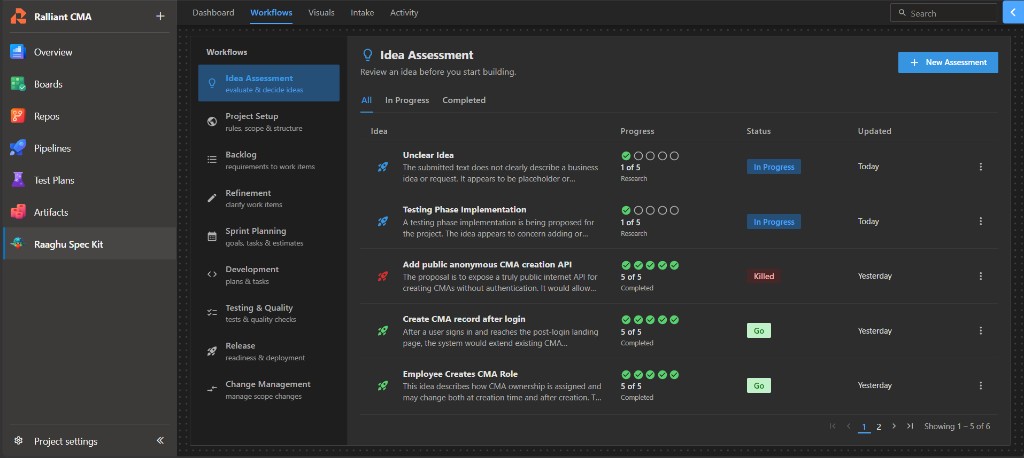
Open Idea Assessment
- Open the Workflows tab.
- Select Idea Assessment in the left list.
- The list shows ideas already under assessment (or an empty state).
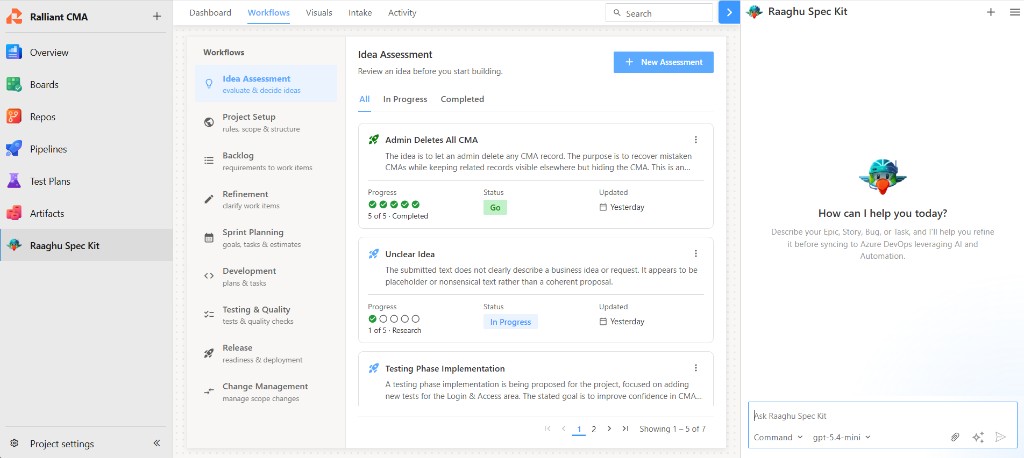
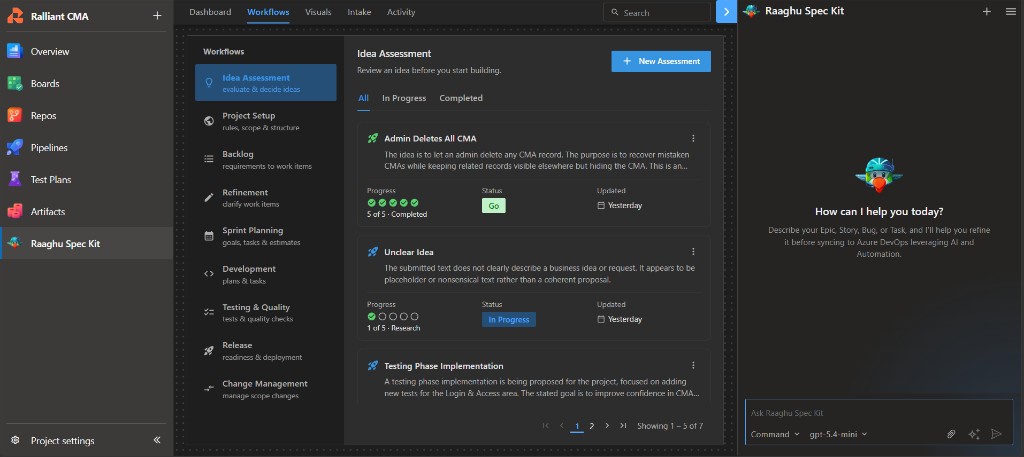
Start a new assessment
- Click + New Assessment.
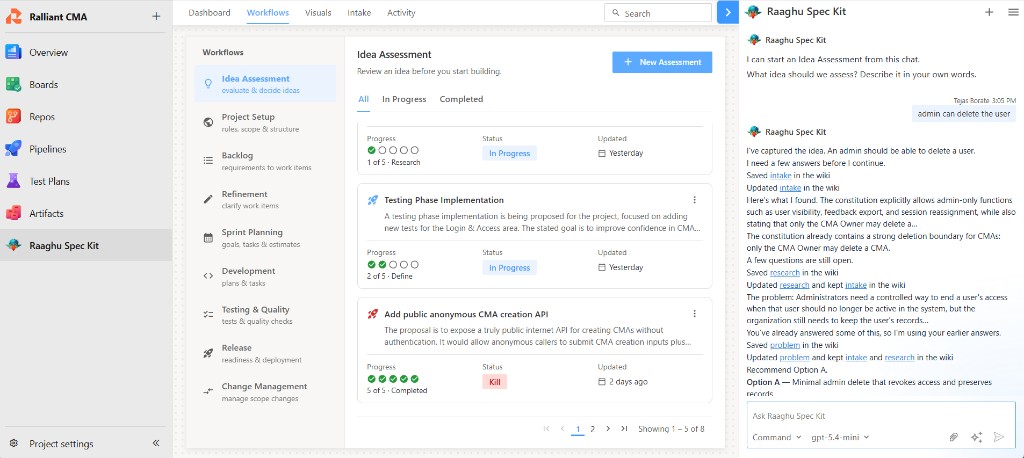
- In chat, Spec Kit asks: "What idea should we assess?"
- Type the idea in the chat box and send (use a full sentence — short fragments are rejected).
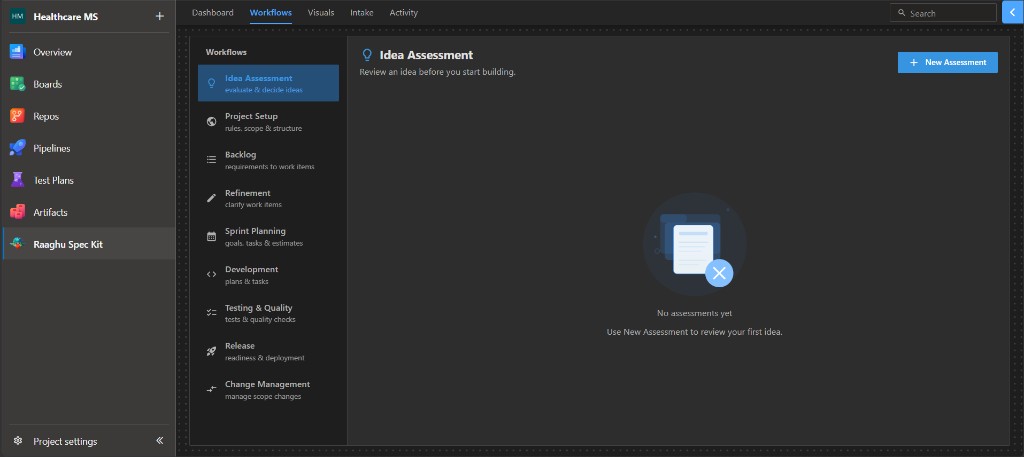
If there are no assessments yet, the empty state says "No assessments yet" and "Use New Assessment to review your first idea."
The five stages
Each assessment runs through these stages (shown as Progress on each card, and as steps in chat):
| Stage | What it does | Wiki page |
|---|---|---|
| Intake | Captures the raw idea without judging it | …/assessments/<idea-id>/intake |
| Research | Gathers evidence for and against the idea | …/assessments/<idea-id>/research |
| Define | Defines the problem: who is affected, goals, metrics | …/assessments/<idea-id>/problem |
| Shape | Shapes 2–3 concept options with trade-offs | …/assessments/<idea-id>/concept |
| Decide | Produces a Go, Needs Clarification, or Kill verdict | …/assessments/<idea-id>/decision |
Artifacts are saved in the project wiki under Raaghu Spec Kit/specify/assessments/<idea-id>/ (older projects may use Speckit/…). Spec Kit creates a short folder id for each idea (for example offline-mode) so every stage stays in one place — you usually do not need to type this yourself when using + New Assessment.
How to move through a stage
In the assessment chat thread:
- Review the stage summary (and any questions).
- Answer questions when Spec Kit asks for input. Clarification questions are shown one at a time (Back / Next, then Submit Answer on the last question).
- Save to Wiki when prompted.
- Click Continue to run the next stage (or Confirm after a Go verdict to hand off to specify).
Use Edit on a stage if you need to change earlier answers. Prefer Continue over retyping slash commands.
Cards, tabs, and status
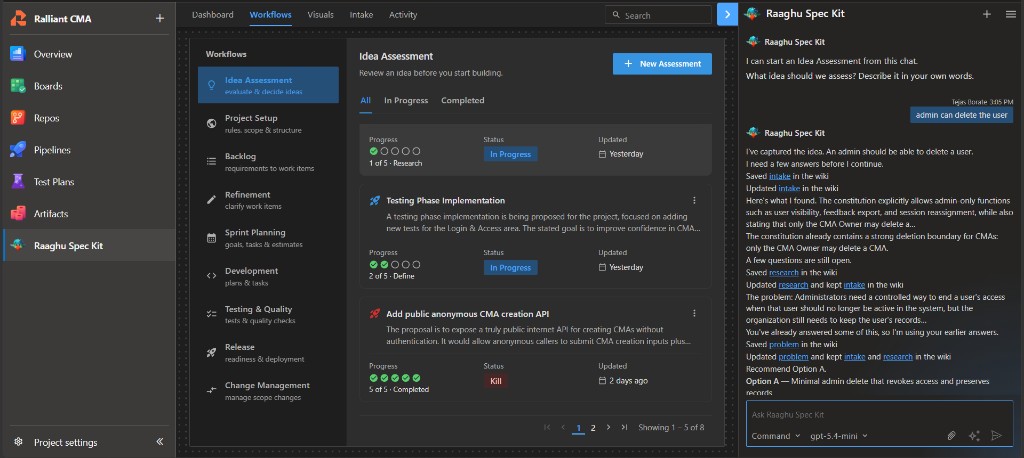
Each idea is a card (title, optional summary, then a meta row):
| Field | Meaning |
|---|---|
| Progress | Stage dots plus a caption such as 1 of 5 · Research or 5 of 5 · Completed |
| Status | Current outcome badge |
| Updated | Last update |
Tabs (when at least one assessment exists): All · In Progress · Completed
| Status | Meaning |
|---|---|
| Not Started | Card exists but intake has not completed |
| In Progress | Stages are still running |
| Needs Clarification | Decide asked for more detail — answer the questions in chat or update the named wiki page, then continue |
| Go | Approved — ready for /speckit.specify |
| Kill | Closed; the wiki record is kept |
Open a card to resume (or start) that assessment in chat. Pagination appears when the list is longer than one page.
After a Go or Kill verdict
After Go
- You can keep chatting in the assessment thread — ask why, push back with reasons, or refine the decision before you confirm.
- Click Confirm when you are ready to hand off.
- Spec Kit starts specify for that idea.
- Continue with the normal path: clarify → plan → tasks (see Spec Kit Commands).
After Kill
- The assessment is closed and the wiki decision is kept.
- You can still ask why or discuss the stop in chat.
- If the idea does not fit this project (different product, domain, or users), Spec Kit stops the idea for this project rather than treating it as a fit that failed on other criteria.
Do not restart the full assess funnel after Needs Clarification — answer the open questions (or edit the named wiki artifact, usually research), then continue.
Slash commands (optional)
Prefer + New Assessment and Continue in the UI. Power users can run the same stages from chat:
| Command | Purpose |
|---|---|
/speckit.assess.intake | Capture the idea |
/speckit.assess.research | Evidence for / against |
/speckit.assess.define | Problem definition |
/speckit.assess.shape | Concept options |
/speckit.assess.decide | Go / Needs Clarification / Kill |
/speckit.assess.refine | Refine after Needs Clarification (usually driven by the guided flow) |
Example:
/speckit.assess.intake "offline sync for field users" slug=offline-mode
/speckit.assess.research slug=offline-mode
Full reference: Spec Kit Commands.
Tips
- Assess before specify when the idea is still uncertain.
- One assessment per idea; resume from the list instead of starting duplicates.
- After Go, use specify once unless you intentionally want another feature.
Next steps
- Workflows — delivery command cards
- Spec Kit Commands
- Your First Feature