Settings
The Settings dialog is where you connect AI for this project and choose how Spec Kit command labels appear. Open it from the Spec Kit hamburger menu (top-right) → Settings.
Two different “Organization Settings”
| Name in the product | Where | Purpose |
|---|---|---|
| Settings (hamburger menu) | Inside the Spec Kit hub | Project LLM, Raaghu AI, and Commands Mapping for the current project |
| Organization settings → Raaghu Spec Kit | Azure DevOps organization settings | Subscription, seats, Configurations, license keys, and credits |
This page covers the in-extension Settings dialog only. For billing, seats, and org-wide LLM connections, see Organization Settings.
Tabs
| Tab | Purpose | Who can use it |
|---|---|---|
| LLM Settings | Project LLM keys and Raaghu-hosted AI for this project | Everyone with hub access (some controls require org admin permission) |
| Commands Mapping | How Spec Kit commands appear in the chat dropdown | Everyone with hub access |
Bring your own key vs Raaghu-hosted AI
- Bring your own key (BYOK) — provide Azure OpenAI, OpenAI, or Claude credentials for this project, or use connections assigned by an admin under Configurations. You pay your provider directly.
- Raaghu-hosted AI — enable Raaghu AI on the LLM Settings tab to use your organization's Raaghu credits instead of (or alongside) your own keys, when your admin allows it for the project.
Fastest way to unblock chat
- If an admin already assigned org LLM connections or enabled Raaghu AI for this project → leave Project LLM Off and use the org / hosted path.
- Otherwise turn Project LLM On, add one provider, save it, and set it as Default.
- If chat still shows "LLM is not configured", ask an admin to set up org connections under Configurations, enable Use Project AI or Use Raaghu AI for the project, or top up credits.
LLM Settings
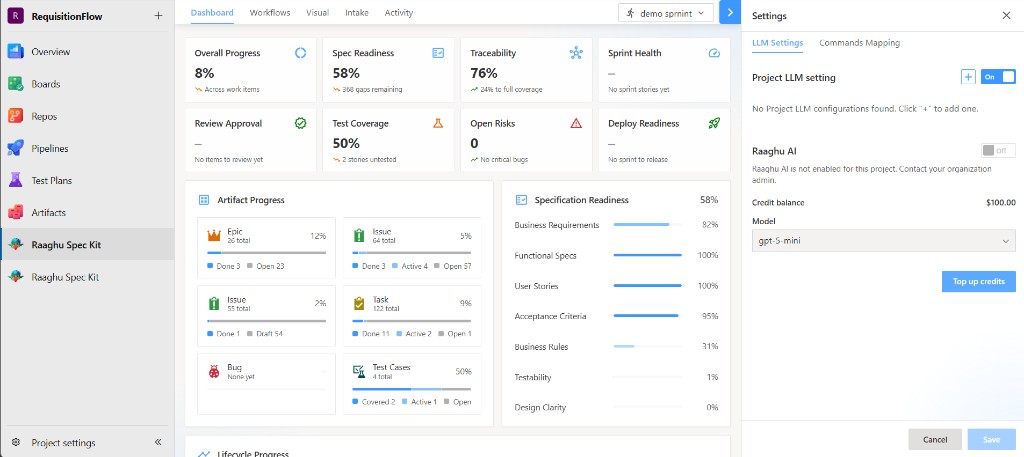
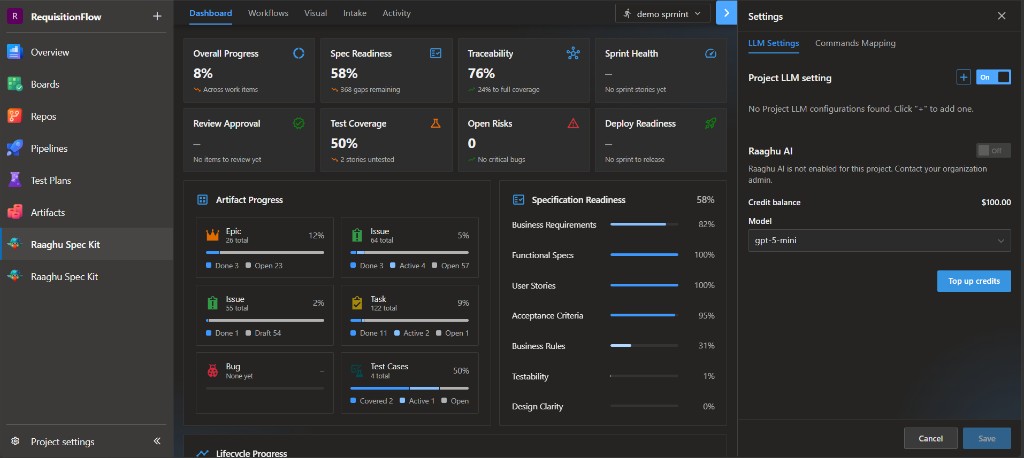
The LLM Settings tab has two sections: Project LLM setting and Raaghu AI.
Project LLM setting
A toggle controls whether this project uses its own BYOK credentials:
- Off — the project uses organization LLM connections assigned by an administrator (when Use Organization AI is allowed for the project).
- On — you can add project-specific credentials here.
Project LLM may be disabled with a message such as "Custom project LLM settings are not enabled for this project. Contact your organization admin." An org admin enables it under Organization settings → Raaghu Spec Kit → Configurations → Project (Use Project AI).
When the toggle is On, click + to add a configuration:
| Field | Notes |
|---|---|
| Title | A name for this configuration |
| AI Provider | Azure OpenAI, OpenAI, or Claude (Anthropic) |
| Model | Model name (multi-select / custom models supported) |
| Endpoint | Required for Azure OpenAI (and as needed by the provider) |
| API Version | Azure OpenAI only (for example, 2024-10-21) |
| API Key | Your provider's API key |
| Expiration | 7, 30, 60, or 90 days, a custom date, or no expiration |
You can add multiple configurations and mark one as Default. Credentials are encrypted. Empty state: "No Project LLM configurations found. Click '+' to add one."
Raaghu AI
The Raaghu AI section appears when your organization can use hosted AI credits.
- On / Off toggle — turn hosted AI on or off for this project
- Credit balance — organization's current hosted-AI balance
- Model — which hosted model to use
- Top up credits — opens the billing hub to add balance (admin path)
If the org admin has not allowed Raaghu AI for this project, the toggle is disabled and you see "Raaghu AI is not enabled for this project. Contact your organization admin."
Only organization admins can change org-level permissions and top up credits. Top-ups are managed in the billing hub: Organization Settings.
Organization-wide connections (shared keys assigned to projects) are managed under Organization Settings → Configurations, not in this dialog.
Commands Mapping
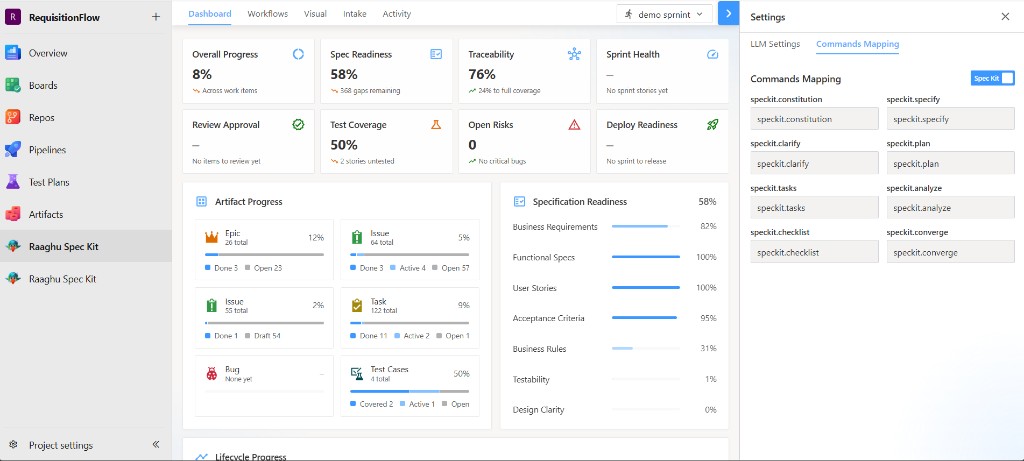
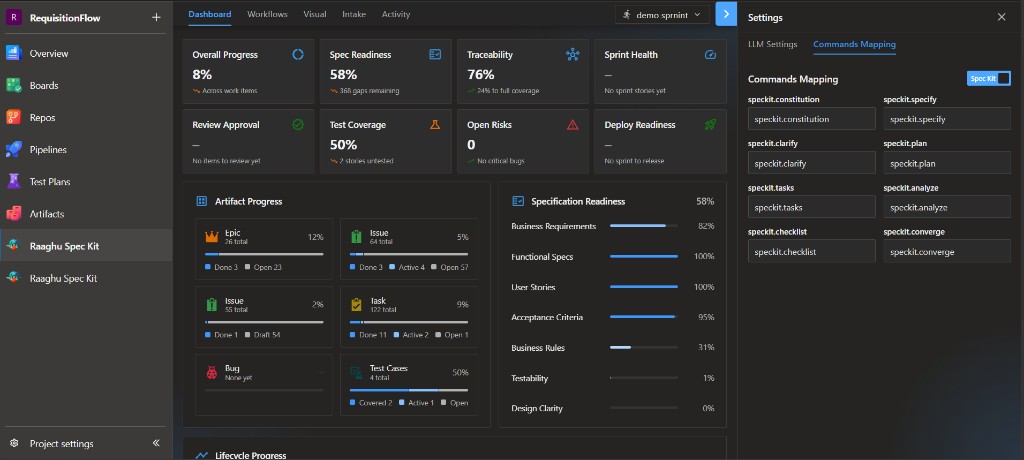
The Commands Mapping tab controls how Spec Kit commands appear in the chat Command dropdown. A Spec Kit / Default toggle switches the display mode:
- Default — friendly names (for example, "Create Specification")
- Spec Kit — technical IDs (for example,
speckit.constitution)
If the dropdown shows "Create Specification", that is the same as /speckit.specify. Labels are read-only; you cannot type custom names. Changing the toggle saves immediately.
The mapped commands are: constitution, specify, clarify, plan, tasks, analyze, checklist, and converge.